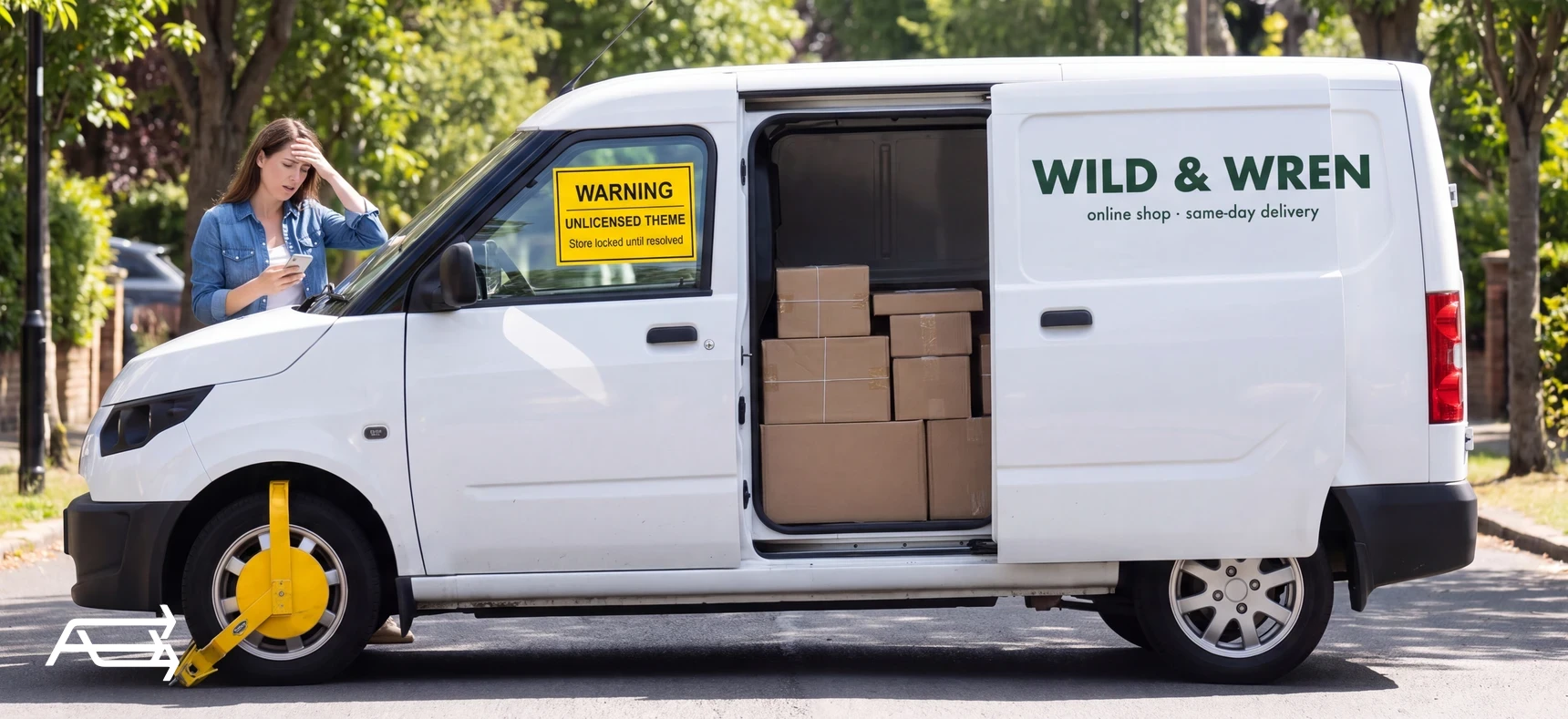
An email says your Shopify store is using an unlicensed theme and gives you a few days to fix it. It might be real. Shopify does restrict stores that use themes without a licence. It might also be a scam: owners have received fake notices about themes that don't even need a licence.
This article starts with how to tell the two apart. Then it explains how a theme ends up unlicensed, what Shopify does about it, and how to fix it. It also covers the question behind most of these cases: who owns your theme licence.
In short
- Check the email first. Shopify sends from addresses such as @shopify.com and @email.shopify.com, never from Gmail. A real licensing issue also shows in your admin, under the theme.
- A paid Theme Store theme is licensed to the store it was bought for. A copy on any other store is unlicensed, even if someone paid for it once.
- Shopify can restrict or lock a store until it's resolved. You can buy the theme for your store, remove it, transfer a licence in narrow cases, or send proof of a licence you hold.
- Whoever builds your store should buy the theme on your store, in your account.
How to use this article
In the first ten minutes, read the next section and check whether the notice is real. Don't click links in the email.
If it's from Shopify, find your case among the five below, then use the decision rule and the steps. Buying or removing a theme takes a few clicks in your admin, so most of the work is working out which case you're in.
If it isn't, read the section on who owns your licence anyway. It's how you make sure a real notice never comes.
First: is the email real?
Fake licensing notices circulate among Shopify owners. On Shopify Community, an owner posted one that claimed their store was using an unlicensed copy of Dawn, a free theme made by Shopify. Others in the thread reported similar emails from Gmail addresses about Dawn, Debut and other themes. A Shopify staff member's advice was that if the store is on Dawn, "then this email should be ignored", and to contact Shopify through the Help Center instead.
Shopify's own guidance on phishing gives you the checks:
The sender. Shopify sends email from "@shopify.com, @email.shopify.com, @em.shopify.com, and @shopify-billpay.melio.com". It also says that "Emails from public email services such as Gmail, Yahoo, Apple mail, or Hotmail aren't from Shopify".
Your admin. A licensing problem Shopify has found shows in your admin. Shopify's help page says you'll see "Action required: licensing issue" under the theme in Online Store > Themes, and that formal takedown notices come with a notification in the admin as well as an email. Log in the usual way, not through the email's link, and look.
The theme. If the email names a free Shopify theme like Dawn or Horizon, be suspicious. There's no paid licence to buy for a free theme.
When in doubt, Shopify says to "contact Shopify Support directly through official channels for confirmation". You can forward suspicious messages to phishing@shopify.com.
What a fake usually wants. A click on a link that asks you to log in, pay for a "licence" or download a file. Shopify's phishing page says it never asks for passwords, card details or ID documents in the body of an email or as an attachment. Legitimate requests send you to a secure page on a shopify.com address.
If you already clicked. Shopify's advice is to change your Shopify password, turn on two-step authentication, and contact Shopify Support to check for any access you didn't make.
What an unlicensed theme is, and what Shopify does
When you buy a theme from the Shopify Theme Store, Shopify says it's "licensed exclusively to the store where the purchase was made". The licence belongs to that store, not to a person, and it doesn't travel with a theme file.
So a paid theme becomes unlicensed on your store when the copy you're running was bought for a different store, or wasn't bought from the Theme Store at all. Shopify's help page sets out what can follow: an unlicensed theme "might result in temporary account restrictions or locks until the matter is resolved", you can't customise or publish it until it's sorted, and it doesn't qualify for support or updates. Shopify asks you to deal with it by the date given, "To avoid any disruption to your store".
The deadline matters. An owner on Shopify Community who couldn't get to their email for a few weeks wrote, "I missed the deadline to respond", and added that they had missed Black Friday, Cyber Monday and the start of the holiday season.
Five ways a theme ends up unlicensed
Each case has the same three parts: how it happens, how to check, and the fix.
1. A developer uploaded a copy they had
How it happens. Someone building your store uploads a paid theme they bought for another store, or for themselves, to save you the cost. One owner asked on Shopify Community, "Can he upload an already paid theme to my store and still be legit?" The reply was that the theme will work, but it needs a licence for that store to be legal.
How to check. Ask the developer where and for which store the theme was bought. Look for a licensing message under the theme in your admin.
The fix. Buy the theme from the Theme Store for your store. Shopify's button for this is "Buy from Theme Store".
2. You bought a store someone else built
How it happens. You bought an existing store, or a ready-made one, and the theme came with it. An owner who had bought a shop from third-party sellers wrote that Shopify "sent me a message after 7 months".
How to check. Ask the seller for the theme purchase record. If they can't show one for this store, assume there isn't one.
The fix. Buy the theme for your store, or switch to a free theme and remove the unlicensed one.
3. You moved to a new store and took the theme file
How it happens. You opened a new store, downloaded the theme from the old one and uploaded it to the new one.
How to check. Was the theme bought on the old store, and is the old store still open?
The fix. A transfer is possible only in narrow cases. Shopify says a theme "can only be used on one store at a time", both stores must have the same account owner email, you must own both, and you must be closing the original store, which can't be reopened. If that's not your situation, buy the theme for the new store.
4. The same theme runs on a second store
How it happens. You run two stores, a second brand or a regional store, and installed your paid theme on both.
How to check. Count your live stores and the licences you've bought. On Shopify Plus, Shopify's page says development and staging stores need their own licences too, and suggests a Partner developer preview store for testing instead.
The fix. Each store needs its own licence. Shopify says the same even on Shopify Plus: a separate theme licence for each storefront that uses it.
5. The theme came from outside the Theme Store
How it happens. A cheaper copy from a marketplace or a file someone sent you. Shopify says "It's strongly recommended that you don't install a theme from any site other than the Shopify Theme Store".
How to check. Find where the theme was bought. If the seller isn't the Theme Store or the theme's own developer, treat it as unlicensed.
The fix. Buy the theme properly, or move to a theme that is. A copy of unknown origin is also a security risk, since nobody can say what's in its code.
The five at a glance
| # | How it happened | Check | Fix |
|---|---|---|---|
| 1 | A developer uploaded a copy | Ask where and for which store it was bought | Buy it for your store |
| 2 | You bought a built store | Ask for the purchase record | Buy it, or switch to a free theme |
| 3 | You moved stores with the file | Old store still open? Same owner email? | Transfer if eligible, otherwise buy |
| 4 | Same theme on two stores | Licences vs live stores | One licence per store |
| 5 | Bought outside the Theme Store | Who sold it? | Buy properly, or change theme |
Buy, remove, transfer or prove?
Shopify's help page lists four ways to resolve it. Pick by your situation:
Buy it if you like the theme and it's sold in the Theme Store. This is the quickest fix for cases 1, 2 and 4. In a Shopify Community thread, Shopify staff said a valid Theme Store purchase "typically would resolve the issue and automatically unlock the storefront".
Remove it and move to another theme. Publish the new theme first, then use "Remove theme" on the unlicensed one. Your products and pages stay. Your layout and wording don't, so this is a theme change, and it takes setting up. If the store has to reopen quickly, a free theme with your logo and colours can carry it for a few days while the proper one is set up.
Transfer it only if case 3 applies and you meet all of Shopify's conditions.
Prove it if you believe you already hold a licence for this store. Use "Provide license information" and follow the instructions in Shopify's email.
If the store is already locked
Act on two fronts at once. Log in yourself and contact Shopify Support through the Help Center, and fix the cause: buy the theme for the store, or publish a free theme and remove the unlicensed one. Shopify staff have said a valid Theme Store purchase typically unlocks the storefront. In the threads, some owners still had to wait for support to look at their case, so start both at once.
While you wait, keep your own records ready: the theme name, where it came from, any receipts, and who installed it.
Who owns your theme licence?
The licence belongs to the store it was bought for. That's the rule behind every case above, and the reason a developer, a seller or a previous owner can't hand you a licence by sending a file.
So when someone builds or rebuilds your store, ask one question before work starts: "Which theme, and will it be bought on my store?" The purchase should appear in your store's own admin. If it's bought for a development store and the store is later handed to you, ask how the licence reaches your store, and get the answer in writing.
Buying an existing store? Add three questions to your checks before you pay:
- Which theme does it run, and was it bought from the Theme Store for this store?
- Can the seller show the purchase in this store's admin or records?
- Has the store ever had a licensing message, and how was it resolved?
If the answers are vague, budget for buying the theme for the store, or for moving it to a new theme after the sale. It's cheaper to know before the sale than seven months after it.
What a licence won't fix
A valid licence makes the theme legal and entitles it to updates and support from its developer. It doesn't set the theme up or speed the store up. If the theme was unlicensed because a developer cut a corner, check what else they did, and whether the same shortcut shows up in undocumented code changes or apps installed by hand. Customising is a separate job too, since Shopify says theme developers "don't provide customizations". Setting the theme up, and checking what else a corner-cutting developer left behind, is our work.
Seven steps when the email arrives
- Don't click anything in the email.
- Check the sender's address against Shopify's sending domains.
- Log in to your admin directly and open Online Store > Themes. Look for "Action required: licensing issue".
- If there's nothing there, forward the email to phishing@shopify.com and ask Shopify Support to confirm.
- If there is, find your case among the five above.
- Choose buy, remove, transfer or prove, and do it before the date given.
- Keep the record: the purchase receipt in your admin, and a note of who installed what.
Do it yourself, or hand it to us?
What it takes on your own. Buying a theme takes a few clicks. The rest doesn't: working out which of the five cases you're in, and when the answer is a new theme, setting it up with your layout, wording and apps against a deadline, often during a lock, while orders wait. If a developer cut this corner, the same shortcut may sit in undocumented code changes too.
What we do. We work out where your theme came from, buy the licence on your store or move you to a theme that's properly yours, and set it up while the store keeps selling. When we build a store, the theme is bought on the client's own store, in their name, so the licence is theirs from day one. The work takes us days. That's our Store Design & Theme Development work.
Questions store owners ask
Is the unlicensed theme email from Shopify real?
It can be either. Real notices come from Shopify's own email domains and also show in your admin as "Action required: licensing issue". Emails from Gmail or similar services aren't from Shopify. If unsure, log in directly and ask Shopify Support.
What happens if I ignore an unlicensed theme notice?
If it's real, Shopify can restrict or lock the store until it's resolved, and you can't customise or publish the theme in the meantime. Deal with it by the date given.
Can I use a paid Shopify theme on two stores?
No. A Theme Store licence covers one store. Each store using the theme needs its own licence.
Can I transfer a theme licence to a new store?
Only if both stores share the same owner email, you own both, and you're closing the original store for good. Otherwise, buy the theme for the new store.
Can Dawn or Horizon be unlicensed?
They're free Shopify themes, so there's no licence to buy. An email claiming your Dawn store is unlicensed should be treated as suspicious and checked with Shopify Support.
How do I check whether my theme is licensed?
Open Online Store > Themes in your admin. An unlicensed theme shows "Action required: licensing issue" under it. If your theme was bought from the Theme Store for this store, the purchase is in your store's records.
Licence problem, and a store to keep selling?
Send us your store URL. We reply within one business day, and if the store needs a new theme, we set it up while it keeps selling. Or start with a free Store Audit, sent the same day: your theme and its version, what it can't do, and the old code still in it.