
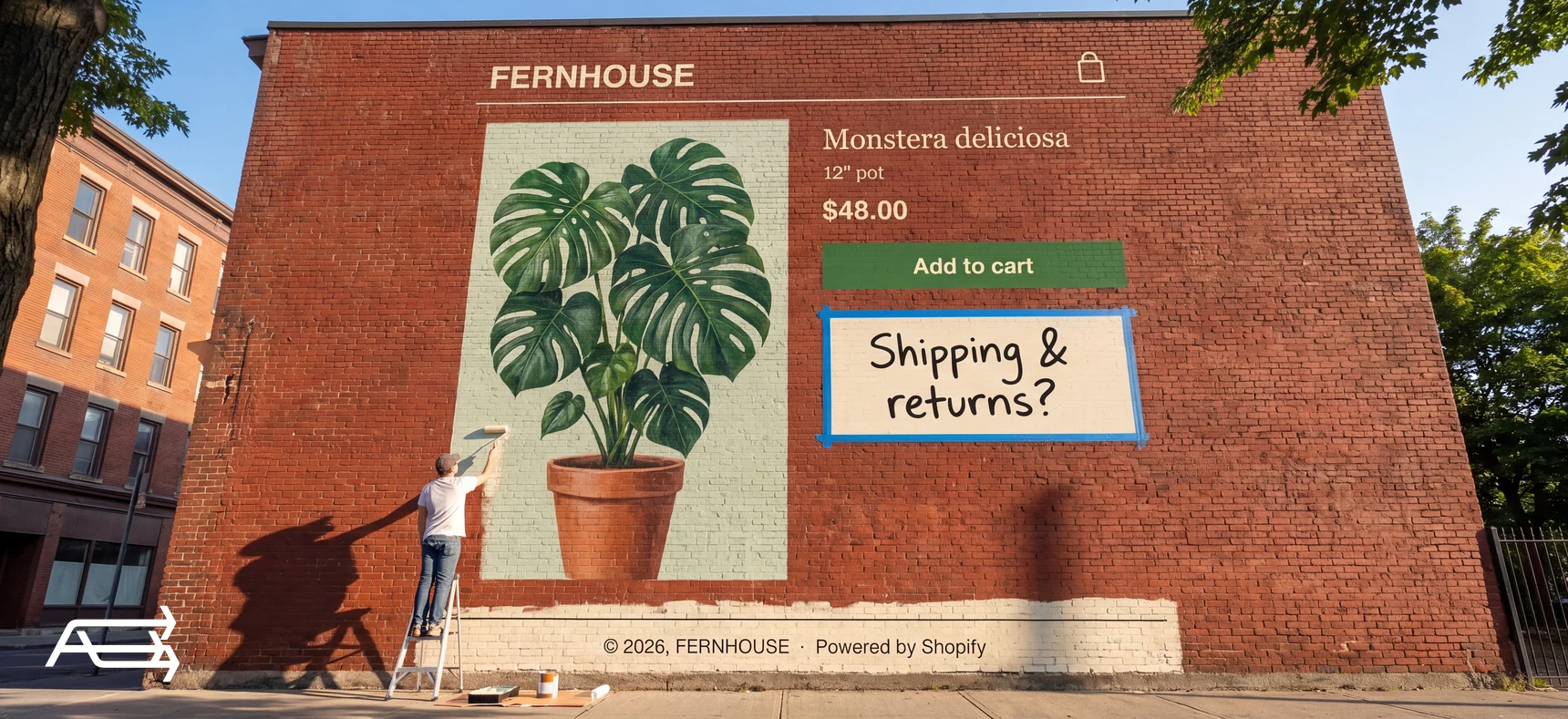
You open the theme editor to change one thing on your product page, and the option isn't there. The section you saw on another store can't be added, or your changes never reach the live store. It usually comes down to one of seven causes.
Four of them take a minute to fix once you know where to look. The other three point at your theme, and those are the ones to understand before you pay for a workaround.
In short
- Check the quick causes first: you may be editing a draft theme, the wrong template, or text that lives in the product itself or in an app.
- If the editor shows no products, they may not be available in your Online Store sales channel.
- If there's no "Add section" button on your product page, your theme is a vintage one. Product pages on vintage themes can only be changed in code.
- A part of the page a developer built in code, or a theme on trial or without a licence, also blocks editing.
How to use this article
Give it fifteen minutes, with your Shopify admin open in one tab and the theme editor in another.
Go through the causes in order. They're sorted from quickest to fix to most involved. Each has the same four parts: what you see, why it happens, the check, and the fix. Stop when you find yours.
If you reach cause 5 or 6, read the decision rule. Those two say something about your theme as a whole.
A small wish, then a wall
This is how it usually goes. An owner on Shopify Community wanted to add collapsible boxes for shipping and returns to their product pages on Debut. Another member suggested adding the block from the theme editor. The owner looked, and wrote back: "The options just weren't there." A second reply explained why: "Debut being a vintage theme (pre-Shopify 2.0) you can't add sections or section blocks." The owner's next line was "Well off to build a new website."
Not every case ends there. Often the cause is one of the quick ones below.
Seven causes
1. You're editing a draft, not the live theme
What you see. You make a change, save it, and the live store looks exactly the same.
Why it happens. Every theme in your library has its own editor. Shopify lets you customise a draft theme before you publish it, which is useful, but changes there stay in that draft.
The check. In your admin, go to Online Store > Themes. Your live theme is the one at the top, marked as your current theme. Open the editor from there.
The fix. Make the change in the live theme, or finish the draft and publish it. Drafts are the right place for big changes. Small fixes belong in the live theme.
2. You're on the wrong template
What you see. You edit the product page, but one product, or a group of them, doesn't change.
Why it happens. On newer themes, a product can use its own template, such as a different layout for bundles. The editor opens the default product template unless you choose another. In each product's settings, Shopify lets you "select the template that you want to apply to your product".
The check. In your admin, open the product and look at the Theme template box. If it says anything other than the default, that's the template to edit.
The fix. In the theme editor, use the drop-down at the top to switch to that template. Or set the product back to the default template if the special one is no longer needed.
3. The text isn't in the theme
What you see. You can't find the text you want to change anywhere in the editor.
Why it happens. A product page mixes content from three places. The product's own description lives in the product, in your admin. Reviews, size guides and badges often come from apps, each with its own settings. And the theme adds its own blocks, such as a row about shipping. In one Shopify Community thread, an owner on Dawn couldn't find where shipping details at the bottom of every product page came from. The answer was that those were theme blocks you can "totally remove" in the theme editor.
The check. Look at the text on one product. If it's different on every product, it's in the product description. If it's the same everywhere and looks like an app's widget, open that app. If it's the same everywhere and plain, it's probably a theme block.
The fix. Edit it where it lives. Product descriptions in Products, apps in the app, blocks in the theme editor.
4. The editor has no products to show
What you see. The product page in the editor shows a placeholder, or you can't open the product template at all.
Why it happens. The editor previews your own products. If none of your products are available in the Online Store sales channel, there's nothing to show. On Shopify Community, an owner who was "unable to edit the product page theme" was told that the likely cause was products not yet added to the Online Store sales channel.
The check. Open a product in your admin and look at its sales channels. Online Store should be listed.
The fix. Add the product to the Online Store channel, then reopen the editor.
5. Your theme is a vintage one
What you see. Your homepage has an "Add section" button, but your product page doesn't. You can change settings on the product page, but you can't add or move anything.
Why it happens. Shopify's older themes, like Debut, Supply, Minimal and Brooklyn, are vintage themes. They allow sections on the homepage only. Shopify's own test for this is to open your default product template in the editor: if there's no "Add section" button, the theme is likely vintage. Newer themes have sections on every page.
The check. Exactly that: open the product page in the editor and look for "Add section".
The fix. There are two. A developer can add what you need to the theme's code, which works but adds one more change someone has to remember. Or you move to a newer theme, where this kind of change takes minutes in the editor. Our article on older Shopify themes sets out the options.
6. Someone built that part in code
What you see. Your theme is a newer one, the "Add section" button is there, but one part of the page doesn't appear in the editor's list of sections and blocks.
Why it happens. A developer added it straight into the theme's code at some point: a delivery message, a custom badge, a size chart. The editor only knows about sections and blocks the theme declares, so a hard-coded piece is invisible to it.
The check. Compare what you see on the page with the list in the editor's sidebar. Anything on the page that isn't in the list was added in code or by an app.
The fix. Ask whoever made it to turn it into a section or block you can edit, or to change it for you. If nobody knows who made it, that's a sign your theme has changes nobody wrote down, which matters the next time you update or change it.
7. The theme is on trial, or isn't licensed
What you see. You can't edit code, or you can't customise or publish the theme at all.
Why it happens. A paid theme on trial can be customised in the editor, but Shopify says "You can't edit the theme code" until it's bought. A theme without a valid licence is stricter: you "won't be able to customize or publish the theme" until the licence is sorted out.
The check. In Online Store > Themes, look for a trial label or an "Action required: licensing issue" message under the theme.
The fix. Buy the theme for this store, or switch to one you own. If someone else installed it for you, ask where it was bought. A theme licence belongs to the store it was bought for.
The seven at a glance
| # | Cause | The check | The fix |
|---|---|---|---|
| 1 | Editing a draft theme | Is the editor open on the live theme? | Edit the live theme, or publish the draft |
| 2 | The wrong template | The product's Theme template box | Switch template in the editor |
| 3 | Text lives elsewhere | Same on every product, or different? | Edit it in the product, the app or the block |
| 4 | No products in Online Store | The product's sales channels | Add them to Online Store |
| 5 | A vintage theme | No "Add section" on the product page | Code changes, or a newer theme |
| 6 | Built in code | On the page but not in the editor's list | A developer, or rebuild it as a section |
| 7 | Trial or no licence | A trial label or a licensing message | Buy the theme for this store |
A setting, or the theme?
Causes 1 to 4 are about where you're looking. Fix them once and they stay fixed.
Causes 5 and 6 are about the theme. Each time you want something new on a product page, you'll meet the same wall, and each time the answer will be a developer's time. So count how often it happens:
Once. Pay for the change, ask for it to be documented, and move on.
A few times a year. Your theme has started to cost you money and speed. A newer theme lets you make these changes yourself, and our seven signs help you judge whether it's time.
Whenever you want to change anything. It's time to plan a theme change rather than another code edit.
Cause 7 is about the licence, and it needs fixing whatever you decide, because an unlicensed theme gets no support or updates.
When the editor won't help, whatever the theme
Some things aren't theme settings on any theme. Logic like "show a different delivery date for each region" or "hide the price for wholesale customers" usually needs an app or custom development, on Debut and on Horizon alike. Sometimes it's a setting that's easy to miss, or a feature of an app you already pay for, which is the first thing we check. And if the product page reads badly because the descriptions are thin or the photos don't match, no editor fixes that. The work is in the products themselves, and it's part of our conversion work.
A fifteen-minute check, in order
- Open Online Store > Themes and confirm you're editing the theme marked as current.
- Open one product in your admin. Note its Theme template and check Online Store is among its sales channels.
- In the editor, switch to that template using the drop-down at the top.
- Look for "Add section" under the product page's sections. No button means a vintage theme.
- Compare the page with the sidebar. List anything on the page that's missing from the editor.
- Check the theme's label in your theme library for a trial or licensing message.
- Write down what you found. If it's cause 5 or 6, that list is what you'll show a developer, or use to decide on a new theme.
If you need a developer, send this
A clear request gets a faster answer and a firmer price. Put these in one message:
- the name and version of your theme, from Online Store > Themes
- the template the product uses
- a screenshot of the page with the change drawn on it
- what you found in the check above, such as a vintage theme or a part built in code
- whether the change applies to every product or only some
Then ask for two things. Where the theme allows it, the change should be built as a section or block you can edit yourself, so the next small change doesn't need a developer. And you want a short note of what was changed and where. That note is what makes the next theme update, or the next theme, safe to do.
Do it yourself, or hand it to us?
What it takes on your own. Causes 1 to 4 and 7 are settings, sales channels and a licence: the check above finds them, and a few minutes fix them. Causes 5 and 6 are different. Each change on a vintage or hand-coded product page means theme code, and every edit nobody writes down makes the next update, or the next theme, harder.
What we do. We tell you whether a code change or a newer theme is the better spend for your store, list the hidden code changes before they cause trouble, and do the work: the change built as a section you can edit yourself, or the move to a theme where the next change takes minutes in the editor. The work takes us days. That's our Store Design & Theme Development work.
Questions store owners ask
Why can't I add sections to my Shopify product page?
Most likely because your theme is a vintage one. Vintage themes allow sections on the homepage only. Open your product page in the theme editor: if there's no "Add section" button, that's the reason.
Why aren't my theme changes showing on my store?
You may be editing a draft theme. Changes stay in the theme you edited until it's published. Open the editor from the theme marked as current in Online Store > Themes.
How do I change the layout of one product without changing all of them?
On a newer theme, create a separate product template in the theme editor and assign it to that product in its Theme template box. Vintage themes can't create templates in the editor.
Where do I edit the text under the price?
It depends on where it comes from. Text that differs per product is in the product description. Text that's the same everywhere is usually a theme block or an app's widget, edited in the theme editor or in the app.
Do I need a new theme to edit my product page?
On a vintage theme, a new theme is the lasting fix. Product pages on vintage themes can only be changed in code, so every change is a developer's time; a newer theme lets you make the next ones yourself, in the editor. On a newer theme, most product page changes are already sections and blocks.
Can I edit a paid theme's code during the free trial?
No. You can customise a paid theme in the editor during a trial, but you can't edit its code until you buy it.
Hit the same wall more than once? Get a free Store Audit
Send us your store URL and the change you're trying to make, and we'll send your Store Audit the same day: your theme and what it can't do, the product page on a phone, a tablet and a computer, and the old code in your theme. It's free.