
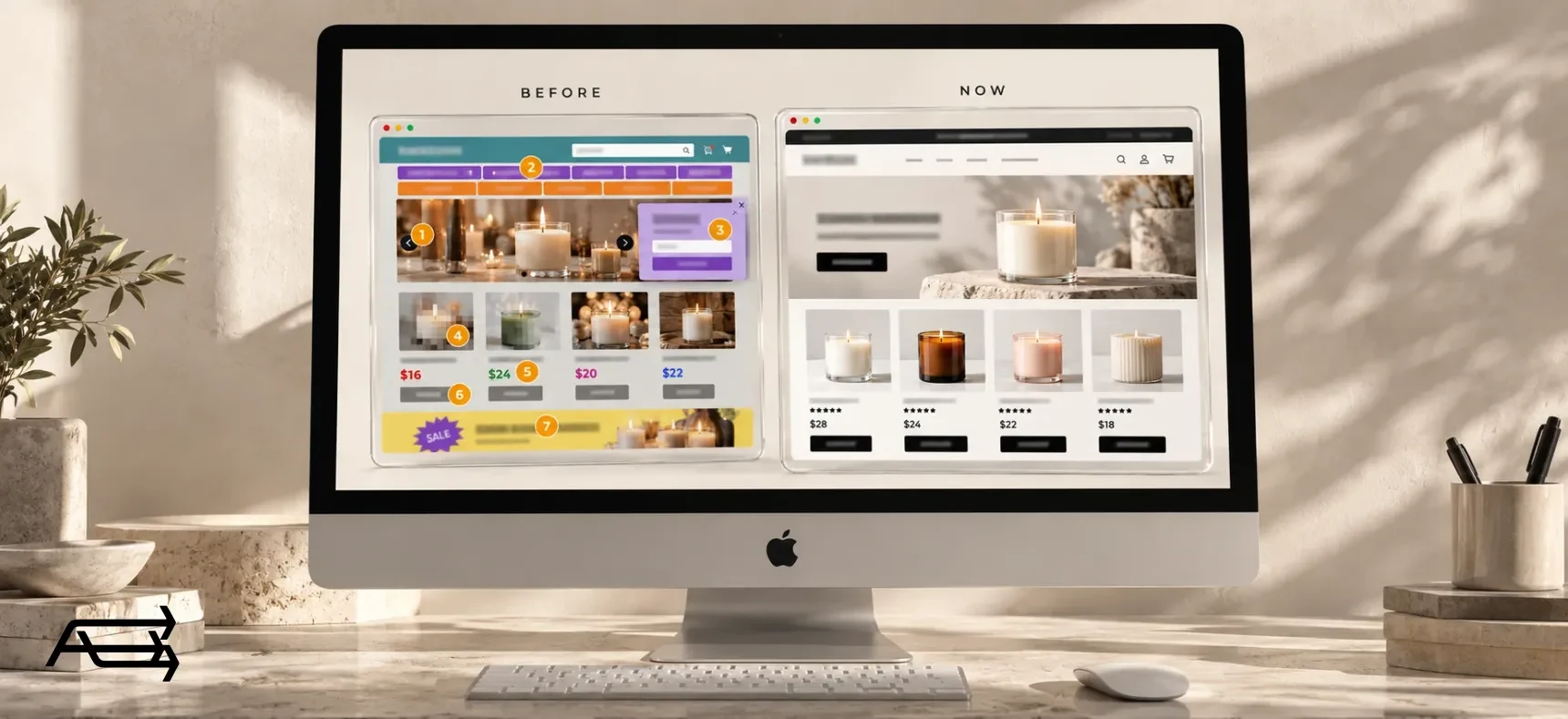
A theme ages quietly. The store still works, orders still come in, and nothing looks broken from the admin. But every visitor decides in a few seconds whether a store feels current and safe to buy from, and an old theme makes that decision harder every day, without telling you.
This checklist covers the seven signs we see most often on stores that have outgrown their theme. Each one comes with a one-minute check you can run yourself, and a fix. By the end you'll know whether your store needs a few settings changed or a new theme, and what switching actually involves.
In short
- Seven signs: a slideshow on the first screen, a crowded menu, an early pop-up, mismatched product photos, no reviews near the price, a buy button that hides, and colours and fonts that don't match.
- Each takes about a minute to check on your phone.
- One or two signs on a modern theme are usually settings or apps. Three or more, or a vintage theme, usually mean it's time for a new one.
- Switching themes doesn't touch your products, collections, pages or blog posts. The work is in rebuilding the design and re-adding apps.
How to run this check
Set aside fifteen minutes. You need your phone, a laptop and something to write on.
Start on your phone. Your Shopify analytics shows how your sessions split by device. For most small stores, the phone is where most visitors are, so that's where the signs hurt most.
Test as a customer, not as the owner. Open your store from a Google search or an Instagram link, in a private window, so you see what a first-time visitor sees, pop-ups included.
Go through the seven signs in order. Mark each one yes (I have this), no, or not sure. Count the yeses at the end. The section "Fix it, or change it?" tells you what the number means.
The 7 signs your store has outgrown its theme
1. A slideshow does the talking
What it looks like. The first screen is a rotating banner: arrows on the sides, dots at the bottom, a new message every few seconds. Usually three to five slides, each made for a different campaign.
Why it costs sales. The first screen has one job: tell a visitor what you sell and why it's worth a look. A slideshow splits that job across several images and hands the timing to a timer. Most visitors don't wait for slide two, and on a phone the text on each slide is often too small to read before it moves. The first screen says a lot and lands nothing.
Check. Open your homepage on your phone. Before the first slide changes, can you say what the store sells and why someone should buy it here?
Fix. Replace the slideshow with one still image, one short sentence and one button. Lead with the product or collection that sells best, not the newest campaign. If you have several things to promote, give each its own section further down the page, where people reach them in their own time.
Setting or theme? Usually a setting. Almost every theme lets you swap a slideshow for a single image banner. If yours can't, that's a theme sign.
2. The menu tries to show everything
What it looks like. Two rows of links. A dropdown under every item, sometimes a dropdown inside a dropdown. The menu grew with the store: every new collection, every sale and every page got a slot.
Why it costs sales. A menu is a map. When everything is on it, nothing stands out, and visitors have to read instead of scan. If their word isn't there at first glance, many leave rather than dig. On a phone, a long menu becomes a long scroll inside a drawer.
Check. Count the items in your top menu. More than six is usually too many. Then open the menu on your phone: can you reach your best-selling collection in two taps?
Fix. Keep four to six top items that match how your customers shop: by product type, by use or by collection. Move the rest to the footer and to search. Make search visible, not hidden behind an icon nobody notices. On a larger catalogue, search does more work than the menu.
Setting or theme? A setting. Menus live in the Shopify admin, not in the theme. But if your theme can't show a clean mobile menu or a visible search bar, that's a theme sign.
3. A pop-up arrives before the products do
What it looks like. A newsletter or discount pop-up covers the page a second after it loads. Sometimes a second layer follows: a cookie banner, a chat bubble, a spin-to-win wheel.
Why it costs sales. The visitor came to see a product, and the first thing they get is a form. On a phone, the pop-up often fills the screen and the close button is small enough to miss. Google also warns that intrusive pop-ups make content harder to understand, which "may lead to poor search performance".
Check. On your phone, in a private window, search Google for one of your products and open your store from the result. What do you see first: the product or the pop-up?
Fix. Show the pop-up after a delay, after some scrolling, or when the visitor moves to leave. Never over the first screen on a phone, and never more than one at a time. Most email apps let you set this without touching the theme.
Setting or theme? A setting, in your email or pop-up app. If the pop-up comes from old code in the theme that nobody can switch off, that's a theme sign.
4. Product photos look different on every card
What it looks like. Some photos are square, some tall, some wide. A white background sits next to a kitchen table. One photo is sharp, the next is blurry, a third is stretched.
Why it costs sales. On a collection page, the photos are the store. When they don't line up, the page looks unfinished, and a shopper carries that feeling all the way to checkout. Blurry or stretched images also make the product itself look cheaper than it is.
Check. Open your biggest collection on a laptop. Do the photos form a clean grid, same size, same background? Then open one product and zoom in on the main image. Is it still sharp?
Fix. Pick one ratio for every product photo (square is the safe choice) and one background. Upload files large enough to stay sharp on a big screen. Most modern themes let you set one image ratio for every product card, so the grid stays clean even when the source photos differ.
Setting or theme? Half and half. The photos are yours to fix. Consistent cropping is a theme setting, and if your theme doesn't have one, that's a theme sign.
5. No reviews near the price
What it looks like. The product page shows a title, a price and a button, but no stars. Or the reviews exist, but they sit at the very bottom of the page, below the description and the "you may also like" row.
Why it costs sales. The price is where the decision happens. At that moment the shopper is asking "is this any good?" Stars next to the price answer the question while it's being asked. Reviews at the bottom answer it after most people have already decided.
Check. Open a product page on your phone. Can you see a star rating without scrolling? Then open a collection. Do the product cards show stars?
Fix. Install a reviews app and place the star rating under the product title, next to the price. Turn on stars on the product cards in collections. Then ask past customers for reviews; most review apps can send the requests for you.
Setting or theme? On a modern theme, most review apps add the stars as a block you drag into place, with no code. On a vintage theme it usually means editing code, which makes it a theme sign.
6. The buy button doesn't stand out
What it looks like. A small grey button in the same style as every other button. Or a button that sits below the first screen on a phone, under a long description and the variant pickers.
Why it costs sales. If shoppers have to look for the button, some of them won't. A button that looks like every other element doesn't tell anyone it's the main action.
Check. Open a product page on your phone, look away for a second, then look back. Can you find "Add to cart" in one second? Scroll down the page. Is the button still within reach?
Fix. One solid, high-contrast button, used only for the main action. Secondary actions like the size guide or sharing get quieter styles. On mobile, a sticky add-to-cart bar keeps the button in reach while shoppers read. If you haven't yet, turn on express checkout buttons such as Shop Pay and Apple Pay.
Setting or theme? Colours and button styles are settings. A sticky add-to-cart bar is built into many modern themes. On older ones it means an app or custom code.
7. Colours and fonts from five different years
What it looks like. Every campaign added a colour. Every app brought its own font. Every banner was made in a different tool. The store now has three shades of blue, four fonts and a badge style for every sale it ever ran.
Why it costs sales. A store that doesn't look consistent doesn't look looked-after, and shoppers read that as risk. Trust is not a small thing at checkout. In Baymard Institute's research, 19% of shoppers who abandoned a checkout said they didn't trust the site with their card details.
Check. Count the fonts on your homepage: headings, body text, buttons, banners, app widgets. More than two is a sign. Then count the colours that aren't black, white or grey.
Fix. Two fonts and a short palette, set once in the theme settings and used everywhere, including in app widgets, which usually have their own style settings. Remake old banners in one style, or remove them.
Setting or theme? Settings, on a modern theme with global colour and font settings. On an older theme where colours are hard-coded in many places, it's a theme sign.
The 7 signs at a glance
| # | Sign | The one-minute check | Usually fixed by |
|---|---|---|---|
| 1 | Slideshow on the first screen | Can you tell what the store sells before slide two? | A setting |
| 2 | Crowded menu | More than six top items? Best seller in two taps? | A setting in the admin |
| 3 | Early pop-up | Pop-up before the product, on a phone? | Your email app's settings |
| 4 | Mismatched photos | A clean grid? Sharp when zoomed? | Your photos, plus a theme setting |
| 5 | No reviews near the price | Stars visible without scrolling? | A reviews app, easy on a modern theme |
| 6 | Hidden buy button | Found in one second? | A setting, plus a theme feature |
| 7 | Mixed colours and fonts | More than two fonts? | Theme settings |
Is your store on a vintage theme? The two-minute test
Shopify's current theme architecture is called Online Store 2.0. Themes built before it are what Shopify calls vintage themes. The difference matters more than any single sign above.
The test. In your Shopify admin, open your theme in the editor and switch from the home page to a product page. Look below the list of sections. If there's an Add section button, your theme is Online Store 2.0. If there isn't, it's a vintage theme. That's Shopify's own test.
What vintage means in practice. You can only add and arrange sections on the homepage. Product pages, collection pages and other pages keep a fixed layout. Apps can't be added as blocks in the editor, so installing one often means editing theme code, and removing it later means someone has to find that code and delete it. Older themes such as Debut work this way. And if you're on one of Shopify's own vintage themes, Shopify says it has been sunset and "is no longer updated". Its advice, on the same page: "Consider upgrading to a newer theme, or seeking the assistance of a Shopify Partner." We're a Shopify Partner, and that move is our work.
That's when fixes turn into workarounds. Every change needs a developer, every new app needs code, and each fix makes the next one harder.
Fix it, or change it?
Count your yeses.
- None or one, on a modern theme. The fix is the setup, not the theme: the settings, photos and sections above. It's a short job, and part of our Store Design & Theme Development work.
- Two or three. Look at which ones. If they're all settings, it's still a setup job. If any of them is a theme sign, run the vintage test above. It decides the question.
- Four or more, or a vintage theme. A new theme usually costs less than another year of patching. It fixes most of the seven signs at once, and every change after it gets easier.
When a new theme won't help
A theme is the shop window. It can't fix what sits behind it. If shipping is expensive, delivery is slow or returns are hard, a new theme makes the store look better and sell about the same. In Baymard's same research, extra costs at checkout (shipping, taxes, fees) top the list of reasons shoppers abandon, at 40%. Fix those first, or at the same time. Shipping, checkout and the product page are part of our conversion work, and we look at them alongside the theme.
What changing your theme involves
A theme change on Shopify is less risky than most owners expect, because it doesn't touch your store's data. Your products, collections, menus, pages and blog posts stay as they are when you switch; they're managed in the admin, separate from the theme. What doesn't carry over is everything set up inside the theme: sections, settings, text in the theme editor and any code changes.
- Write down today's numbers. Conversion rate, add-to-cart rate and the split between phone and desktop, from Shopify analytics. Take screenshots of your key pages. Without a before, you can't prove the after.
- Pick a theme for your catalogue, not for its demo. Online Store 2.0, updated recently, built for a catalogue your size. A theme made for one hero product behaves differently from one made for 500 products. Look at the demo stores on your phone first.
- Build on an unpublished copy. The new theme waits in your theme library while your current one stays live. Customers see nothing until you publish. Load your own products into it: demo photos flatter every theme.
- Rebuild, don't copy. Set up sections, colours, fonts and navigation from scratch, using the seven signs as your brief. Re-add apps one by one, and remove any code old apps left behind in the previous theme.
- Check the basics before launch. Product and page addresses stay the same, because Shopify sets them, not the theme. But check that every page still has one clear main heading, that images keep their alt text and that your homepage text made it across. Place a test order on a phone. Check that every app still works.
- Publish at a quiet hour, then watch. Compare against the numbers from step 1 after two weeks and again after four. Keep the old theme in your library for a while, so you can switch back in minutes if something breaks.
Do it yourself, or hand it to us?
What the fixes take on your own. The settings are quick to find and slow to get right. Each one means learning where your theme keeps it, trying it on a phone and a computer, and checking nothing else moved. Photos mean re-cropping or reshooting a catalogue. On a vintage theme, half the fixes are code, so they aren't yours to make at all.
What a theme change takes on your own. Choosing a theme against your catalogue, rebuilding every section, colour and menu, re-adding apps, clearing the code old ones left behind, and testing with a real order. It's evenings and weekends, away from your products and your customers.
What we do. We check your store against the seven signs, move it to a theme that fixes them, and set it up with your products, photos and apps on an unpublished copy while your store keeps selling. The work takes us days. That's our Store Design & Theme Development work.
Questions store owners ask
Is Dawn an outdated theme?
No. Dawn is Shopify's free theme, built on Online Store 2.0, so it passes the vintage test. But it's simple by design, and many stores on Dawn show the signs above because they launched on the default look and never made it their own. The answer is a proper setup, or a premium theme with more built in. Our article on whether Dawn is too basic helps you tell which.
Will changing my theme hurt my SEO?
Not by itself. Your addresses, product titles and descriptions live in the admin and stay the same. The risk comes from what the new theme does differently: missing headings, lost alt text, a slower homepage full of heavy images. Check those before you publish (step 5), then compare search traffic in the weeks after.
Will I lose my products or content?
No. Products, collections, menus, pages and blog posts stay exactly as they are. You redo the theme's settings, sections and theme-editor text, and re-add app blocks.
How often should a Shopify store change its theme?
When the signs pile up, not on a calendar. A store on a modern theme that's kept up to date can run on it for years. A vintage theme is worth replacing even if the store doesn't look old yet, because it only gets harder to change.
How long does a theme change take?
It depends on the catalogue and the apps. Setting up a well-built theme with your products and brand takes days. A redesign with custom sections and a lot of app work takes weeks. Either way, the store stays live the whole time.
Can I change my theme without closing the store?
Yes. The new theme is built as an unpublished copy while your current one stays live, and customers see nothing until it's published. The old theme stays in your library, so you can switch back in minutes.
Not sure which of the seven your store has? Get a free Store Audit
Send us your store URL and we'll send your Store Audit the same day: your menu, product pages and photos on a phone, a tablet and a computer, your theme and what it can't do, and the app scripts that stop on 1 March. It's free.