

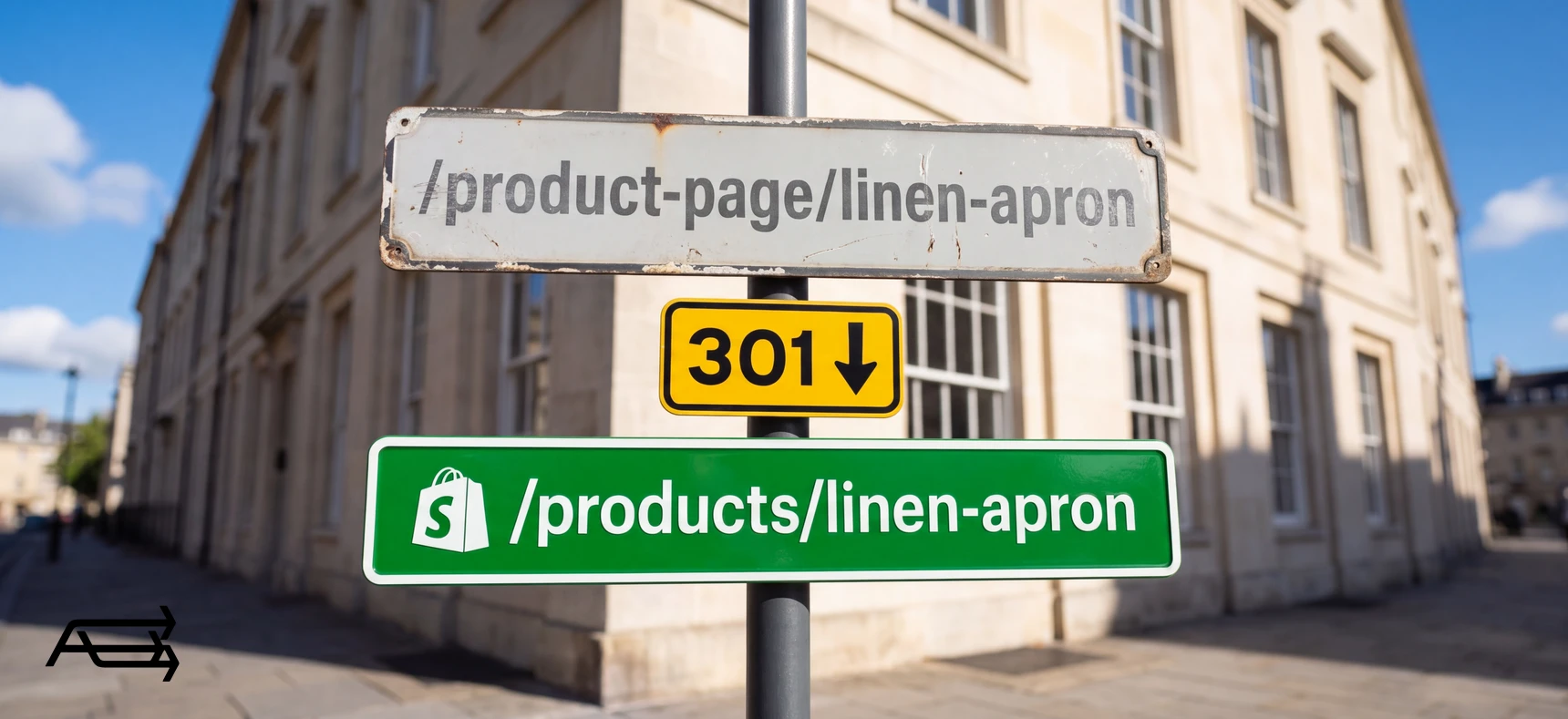
Google ranks addresses, not stores. When you move to Shopify, most of your store's addresses change, and any old address that now leads nowhere slowly drops out of search, taking its visitors with it.
This guide covers the seven things that carry your rankings through a move, each with a check and a fix. It explains why traffic dips for a few weeks even after a clean move, how to tell a normal dip from a real problem, and ends with a before, during and after checklist.
In short
- Your rankings sit on your old addresses, titles and text. A move keeps them when every old address sends visitors and Google to its matching new page with a permanent (301) redirect.
- Shopify uses fixed folders for products and collections, so most addresses change. You build the list of old and new addresses; Shopify imports it from a CSV file.
- Copy titles, descriptions, text and alt text across as they are. Change one thing at a time.
- Expect a dip for a few weeks. Watch Search Console, fix broken addresses fast, and keep the redirects for at least a year.
How to use this guide
Start a few weeks before launch. You need your old site, still live; access to Google Search Console for your domain; a spreadsheet; and the new Shopify store, which can stay password protected while you build.
Read the seven first. Each has the same five parts: what it is, what goes wrong in a move, a check, a fix, and whether Shopify handles it or you do. Then work through the checklist in "The move, step by step".
No Search Console yet? Set it up on the old site today. After the move, it shows what broke.
The 7 things that carry your rankings
1. Your addresses
What it is. Google files every page it knows under its address. The links other sites have given you point at those same addresses.
What goes wrong in a move. Shopify puts products under /products/, collections under /collections/ and blog posts under /blogs/ and the blog's name (Shopify), and other pages under /pages/ (Shopify Help). You can edit the last part of each address, the handle, but Shopify calls /products and /collections fixed paths. Your old platform used other folders: a Wix product sits under /product-page/ by default (Wix Help), and a Squarespace 7.1 product has /p/ before its name (Squarespace Help). So nearly every product address changes, even when the product doesn't. Without a redirect, each old one shows "Page not found".
Check. Search Google for site:yourdomain.com and look at how your product, category and blog addresses are built. Any folder that differs from Shopify's means every address under it will change.
Fix. Build a redirect list: every old address in one column, its new Shopify address in the next. Keep the old name as the new handle where you can, so /product-page/linen-apron becomes /products/linen-apron. Import the list through Shopify's URL redirects screen (step 8). Google says permanent redirects such as 301 "don't cause a loss in PageRank".
Three limits first. Shopify won't redirect addresses that start with /shop, /cart, /orders and a few other prefixes. Addresses with a query string (a ? and settings after it) "might not work as expected". And a redirect only works from an address that shows "Page not found" on Shopify (Shopify Help). If your old store page was called /shop, every product under it starts with /shop too, so check this early.
Shopify or you? You. When you change a handle inside Shopify, the admin offers a redirect, pre-selected. It knows nothing about your old platform's addresses.
2. Page titles and meta descriptions
What it is. The page title is the blue link in Google's results. The meta description is often the text under it. Google has shown your current ones for months, maybe years.
What goes wrong in a move. Depending on how products are moved, the search fields can arrive empty. Then the theme builds a title for you, and Shopify notes that themes generate title tags that include your store name. The new title may be fine. It's still a change, on every page at once, that Google has to re-read.
Check. In Search Console's Performance report, sort pages by clicks and take the top ten. Compare each old title and description with the "Search engine listing" section in the Shopify admin.
Fix. Copy the old title and description into every product, collection, page and post. For a large catalogue, a spreadsheet import beats typing. Rewrite them later, once the move has settled.
Shopify or you? You. Shopify gives you the fields. It can't know what was in them before.
3. The words on the page
What it is. Product descriptions, collection intros, your About and FAQ pages, your blog posts. This is what Google matched to people's searches.
What goes wrong in a move. Text from a custom block on the old site may have no home in the new theme. Collection intros get dropped. Blog posts get left for "later".
Check. For the same ten pages, compare the main heading and body text, old against new. Then count the blog posts on both sites.
Fix. Keep product and collection text word for word for now. Move every blog post that gets search clicks. Shopify's default blog is called News (Shopify Help), so a Wix post at /post/spring-care might become /blogs/news/spring-care. If an old page ranked for something, the new page should still say it.
Shopify or you? You. The words travel with the import. Where they appear depends on the theme.
4. Images and alt text
What it is. Alt text describes an image for people using screen readers and for search engines.
What goes wrong in a move. Photos move with the products; their alt text doesn't always come along. Images inside copied blog posts can still load from the old platform, and break the day you close that account.
Check. Open three products in the Shopify admin and look at the main image's alt text. Then open two moved blog posts and open an image in a new tab. Its address should belong to Shopify, not your old platform.
Fix. Add alt text in the admin: select the image, then "Edit alt text" (Shopify Help). Re-upload blog images to Shopify and swap them into the posts.
Shopify or you? You.
5. Links between your own pages
What it is. Links from one page of your store to another, in menus, descriptions and blog posts. They tell Google which pages matter and how they connect.
What goes wrong in a move. Menus get rebuilt, but links inside text keep the old addresses. Redirects keep them working, but every click and crawl takes a detour, and a detour on a detour becomes a chain. Google follows up to 10 hops but advises redirecting to the final destination directly, and asks you to update internal links to the new addresses.
Check. Hover over the links in five blog posts and five product descriptions on the new store. Does any still use an old folder, such as /product-page/, /p/ or /post/?
Fix. Point links in text at the new Shopify addresses, and build new menus from them.
Shopify or you? You.
6. Sitemap, robots.txt and canonical tags
What it is. The sitemap lists your pages for Google. The robots.txt file tells crawlers what to skip. A canonical tag names the main address of a page that can be reached in more than one way.
What goes wrong in a move. On Shopify, very little. Shopify generates sitemap.xml and robots.txt and adds canonical tags automatically (Shopify Help). The risk is the store password: while it's on, Google can't read the sitemap.
Check. After launch, open yourdomain.com/sitemap.xml in a private window. You should see links to separate sitemaps for products, collections, pages and blogs.
Fix. Remove the password at launch. Submit sitemap.xml in Search Console, under Indexing, Sitemaps. Google says the new sitemap helps it learn the new addresses.
Shopify or you? Shopify builds it. You switch the password off and submit it.
7. Your access to Search Console
What it is. Where Google reports on your site: pages indexed, pages broken, searches that bring clicks. After a move, it's how you find problems.
What goes wrong in a move. If you verified Search Console through your old platform, for example with an HTML tag the platform added to your pages, that tag disappears with the old site. Google rechecks verification. If it can't confirm it, you're notified, and after a grace period you lose access.
Check. In Search Console's settings, see how you're verified: an HTML tag, a file, Google Analytics, or a DNS record.
Fix. Before launch, add a Domain property verified with a DNS record, and keep that record when you point the domain to Shopify. If you bought the domain through the old platform, check where its DNS settings will live after the move, and copy the record there. Export your Performance data too. It's the "before" you'll compare against.
Shopify or you? You.
The seven at a glance
| # | What carries your rankings | What goes wrong | The check | Handled by |
|---|---|---|---|---|
| 1 | Addresses | Old addresses show "Page not found" | site: search, compare folders | You: redirect list |
| 2 | Titles and descriptions | Arrive empty or rebuilt by the theme | Top ten pages, old against new | You |
| 3 | Words on the page | Intros dropped, posts left behind | Headings and text, post count | You |
| 4 | Images and alt text | Alt text lost, blog images on old servers | Three products, two posts | You |
| 5 | Internal links | Old addresses in text, chains | Hover over links in ten pages | You |
| 6 | Sitemap, robots, canonicals | Password left on | Open /sitemap.xml | Shopify builds, you submit |
| 7 | Search Console access | Verification leaves with the old site | How are you verified? | You |
Why traffic dips after a move, even a good one
Google says it plainly: "Expect temporary fluctuation in site ranking during the move". For each old address, Google has to find the redirect, visit the new page, index it and move the signals across. It does this page by page, not all at once. For a medium-sized site, Google says it can take a few weeks or more before new addresses replace old ones in results, and longer for large sites.
Shopify's own guide says traffic should recover within a few weeks for small sites and months for large ones. The time depends on how many pages you have and how much search traffic comes from people who don't type your store's name (Shopify).
What you'll see in Search Console. In the Page indexing report, old addresses move into "Page with redirect". That's expected, not an error. The status to watch is "Not found (404)". In the Performance report, old addresses lose impressions while new ones gain them. In Google's words, "ideally the traffic on the old site will go down, while on the new site the traffic goes up."
Normal dip, or a real problem?
For each page that lost clicks, ask two questions.
- Does the old address land on the right new page, in one step? Open it in a browser. If it shows "Page not found", lands on the homepage, or passes through several addresses, fix the redirect today.
- Is the new page the same page? Same title, same main heading, same text. If not, put the old words back.
A "no" to either is a problem you can fix now. Two "yeses" mean Google is most likely catching up: wait and watch. If one page still lags after the rest of the store has come back, look at it on its own: its content, its speed, and who ranks above it now.
When redirects won't help
A clean move keeps the rankings you have. It doesn't add new ones.
- Little search traffic to begin with. If Search Console shows few clicks before the move, there's little to protect. Do the basics and spend your time on the new store.
- Pages you drop. Removed products and posts take their traffic with them. Google says addresses with no equivalent should return a 404 or 410, and that sending many to one unrelated page, such as the homepage, "might be treated as a soft 404".
- Changing everything at once. A new domain, new names, new text and a new design in one week give Google a whole new site to learn. Google's advice: plan changes "one after the other, not everything at the same time".
- A store that was already slipping. Check the trend for the months before the move. If traffic was falling then, the move isn't the cause.
- A slower new store. Redirects move your addresses, not your speed. Check the new store's speed on a phone before you switch.
Growing search traffic after the move, and keeping the new store fast, are part of our SEO work.
The move, step by step
Before launch
- Pick the date. Shopify suggests moving at least six months before your busy season, or straight after it (Shopify).
- Secure Search Console. Add a Domain property verified by DNS, as in point 7. Export your Performance data.
- List every old address. Google suggests your sitemaps, the pages with most traffic in your analytics, and the Links report in Search Console (Google).
- Record what each page says. Next to each address: title, meta description, main heading. Mark the pages that bring search clicks.
- Build the store to match. Old names as handles where you can. Titles, descriptions, text and alt text copied as they are. Blog posts moved.
- Fill in the new addresses. For each old address, the closest new page. A discontinued product goes to its collection, not the homepage. If nothing fits, let it show "Page not found".
- Fix the links in your text so descriptions and posts point at the new addresses.
Launch day
- Import the redirects. In the Shopify admin: Content, Menus, URL redirects, Import. Shopify offers a sample CSV to use as a template. Upload, review, import. A store can hold up to 100,000 redirects, or 20 million on Shopify Plus (Shopify Help).
- Remove the store password.
- Point your domain to Shopify. The manual set-up changes the A, AAAA and www CNAME records, and it can take up to 48 hours for the domain to be fully live (Shopify Help). If your email runs on the same domain, leave its records alone.
- Test your top twenty pages. Open each old address in a browser. It should land on its match in one step. Search Console's URL Inspection tool shows what Google sees for a single page.
- Submit the sitemap. If you also changed domain, use the Change of Address tool. It's only for moves from one domain to another. Same domain? Skip it.
After launch
- Check "Not found (404)" in the Page indexing report often in the first weeks. Every old address there that had a match needs a redirect.
- Compare page by page. In the Performance report, compare the weeks after launch with the weeks before, in weekly or monthly views, as Google suggests, so weekdays and weekends don't skew it. Run the two questions on any page that fell.
- Keep the redirects. Google says "for as long as possible, generally at least 1 year". Deleting them to tidy the list can cost you the rankings they carry.
- Then change things, one at a time. New titles, text or design: each after the move has settled, so you can see what it did.
Do it yourself, or hand it to us?
What it takes on your own. Learning Search Console well enough to read what broke. Listing every old address from sitemaps, analytics and links, matching each to its closest new page, and copying titles, descriptions, text and alt text across page by page. Then the launch-day checks, and weeks of 404 reports and page-by-page comparisons. Gaps in a redirect list don't show for weeks, and by then the traffic is already gone.
What we do. We build the redirect list from your sitemap, analytics and Search Console, carry every title, text and image across as it is, and handle the /shop and query-string cases before launch. After the switch we watch Search Console and fix what breaks the same day. The work takes us days. That's our Migrations & Replatforming work.
Questions store owners ask
Will moving to Shopify hurt my Google rankings?
Not if the move is done with care. Expect a dip for a few weeks while Google catches up. Rankings are lost when old addresses lead nowhere, when titles and text change during the move, or when redirects are removed too early.
Can I keep my old addresses on Shopify?
Mostly not. Products live under /products/ and collections under /collections/, and those folders are fixed. You can keep the last part of each address, the handle, and redirect the old address to the new one.
Do I need Google's Change of Address tool?
Only if you're moving to a new domain. If your domain stays the same and only the paths change, it doesn't apply. Redirects and a new sitemap do the work.
How long does it take for traffic to recover?
Google says a few weeks or more for a medium-sized site, and longer for large ones. Shopify says a few weeks for small sites and months for large ones. Missing redirects make it longer.
How long should I keep the redirects?
Google says at least a year, and "for as long as possible". Shopify's guide says ideally for good. A store can hold up to 100,000, so there's rarely a reason to remove them.
Should I redesign my store at the same time?
The design changes anyway: a Wix or Squarespace design can't come with you, so the store gets a Shopify theme either way. What should stay the same during the move is the words: titles, headings and text. Change those later, one at a time, so if something drops you know which change caused it. Our article on the signs a theme has been outgrown covers the design side.
Planning a move to Shopify?
Send us the store you're moving from. We reply within one business day with what your move would take, the redirect list included, and we do the move while your old store keeps selling.