
A Shopify store rarely gets slow all at once. It slows a little every time an app goes in, a banner goes up or a tracking tag gets pasted into the theme, until a shopper on a phone is waiting for a first screen that hasn't arrived. Nothing breaks, so nobody notices, except the visitors who leave.
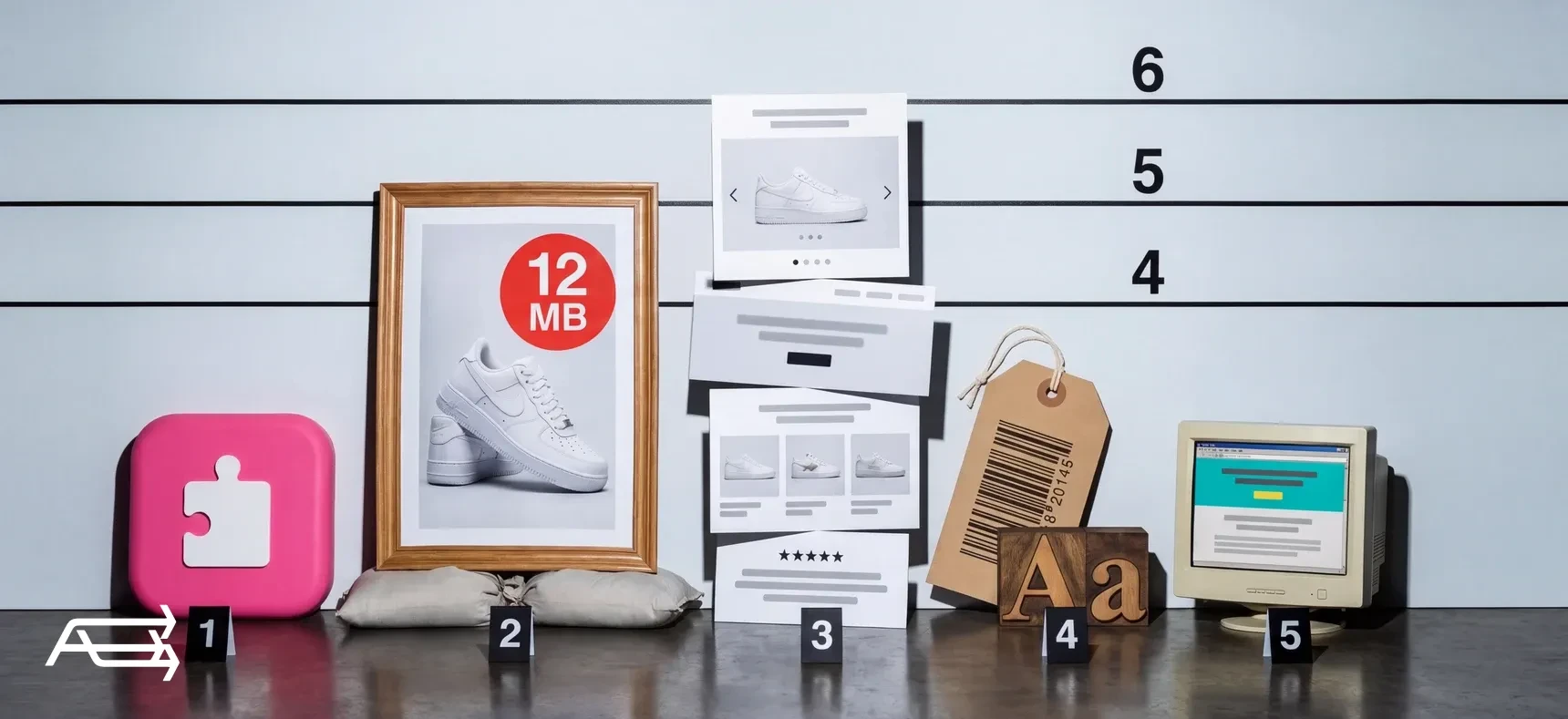
Below are the five usual suspects, each with a check you can run with free tools from Shopify and Google, and a fix. You'll also see what to fix first, and when speed work isn't the answer.
In short
- Five usual suspects: apps and their leftover code, heavy images or a video hero, a homepage that does too much, tracking tags and outside fonts, and an old or overloaded theme.
- Servers, the CDN and file compression aren't on the list. Shopify runs them, and you can't change them.
- Start with the web performance reports in your Shopify admin, then use PageSpeed Insights to find out why.
- Fix the number that fails, not the score. If all three Core Web Vitals are good, speed isn't your problem.
How to run this check
Set aside thirty minutes, with a laptop and your Shopify admin.
Start with what real visitors saw. Shopify's web performance reports show how fast your store loads for real visitors. In your admin, go to Analytics > Reports and search for "contentful", "next" or "cumulative", or open the summary on the Online Store > Themes page. You can filter by device, page type and page URL, and numbered markers on the chart show changes in your store that could affect speed. The data can lag by up to 36 hours and covers the last 90 days. A new store, or one in private mode, may have none yet.
Then find out why, with PageSpeed Insights. Paste your homepage, a collection and a product page into PageSpeed Insights. The top half is field data: what Chrome users experienced over the previous 28 days. The lower half is a simulated lab test run by Lighthouse, and it's where the 0–100 score comes from. Field data tells you whether there's a problem. The lab test helps you find the cause. On a small store, PageSpeed Insights may show field data for the whole site instead, or none at all.
Know the three numbers. Google calls them Core Web Vitals, and Shopify's reports use the same three:
| Metric | What it measures | Good | Poor |
|---|---|---|---|
| LCP · Largest Contentful Paint | How long until the main image or block of text appears | 2.5 s or less | Over 4 s |
| INP · Interaction to Next Paint | How long the page takes to respond to a tap or click | 200 ms or less | Over 500 ms |
| CLS · Cumulative Layout Shift | How much the layout jumps while the page loads | 0.1 or less | Over 0.25 |
A page counts as good when at least 75% of visits reach the good line, on mobile and desktop separately. In between, Shopify says moderate and Google says needs improvement (LCP, INP, CLS).
Read the phone numbers first if most of your visits come from phones. Mark each suspect below yes, no or not sure, then go to "Where to start".
The 5 usual suspects
1. Apps, and the code they leave behind
What it looks like. A reviews widget, a chat bubble, a currency switcher, an upsell pop-up, a countdown timer. Each was installed for a good reason. Some were uninstalled a year ago and still load on every page.
Why it slows the store. Many apps add JavaScript to every page, whether the page uses them or not. Shopify names apps as one of the main factors in store speed, and its developer guide lists too much JavaScript among the primary causes of a poor INP. Removing an app doesn't always remove its code either. In Shopify's words, "Uninstalling an app doesn't automatically remove its code from your theme."
Which number it hurts. INP most. LCP when an app's script has to run before the page can show, and CLS when a widget appears late and pushes the content down.
Check. Under Settings > Apps, ask of each app: has it earned money or saved time in the last three months? In the theme editor, click App embeds. Every embed switched on there loads on your storefront. Then open your store in a browser, view the page source and search it for the names of apps you've removed. If they're still there, so is their code.
Fix. Remove the apps that don't earn their place. Shopify's advice is to weigh each app's value against what it costs in speed. Before you uninstall, check whether the app needs extra removal steps. Where your theme already does the job, such as a sticky add-to-cart bar, use the theme and drop the app. Switch off app embeds you don't use.
Setting, app or theme? Mostly settings. Leftover code is a code job: someone has to find it in the theme files and delete it. On a vintage theme, where apps are installed by editing code, expect more of it.
2. Heavy images and a video hero
What it looks like. A full-width hero photo, a background video that starts as the page opens, thirty product images and four banners on the homepage. Or a first image that arrives after everything else.
Why it slows the store. The main image or video on the first screen is usually what LCP measures. Google counts images, background images and videos as candidates, and for a video it's the poster or the first frame. Shopify already does the file work. It serves images as WebP or AVIF where the browser supports them, compresses them, and says you don't need to compress them before uploading. So the problem is rarely the format. It's how many images a page loads, how large the theme requests them, and whether the first one is told to wait. Shopify's developer guide says never to lazy-load the LCP image, because lazy loading tells the browser to fetch it later. A video hero makes LCP wait for a poster or a first frame, from a file that is almost always far heavier than a photo.
Which number it hurts. LCP. CLS too, when images load without a set size, one of the common causes of layout shift.
Check. Run your homepage on mobile in PageSpeed Insights and find the element the lab results name as your LCP. Is it a photo, a video or a slideshow? Then, on your phone, count the images before the first product, and note any video that plays on its own.
Fix. One still hero image, one line of text, one button. Upload a sharp original and let Shopify compress it. Move other images and banners further down, or remove them. If you keep a video, make it short and muted with a poster image, and consider a still image on phones.
Setting, app or theme? Choosing and moving images are settings. The image sizes the theme requests, and whether it lazy-loads the first one, are theme code. Before you add an image compression app, remember that Shopify already compresses your images.
3. A homepage that does too much
What it looks like. A five-banner slideshow, then an announcement bar, a logo strip, three product carousels, an Instagram feed, a testimonial slider and a video. Sections that fade in as you scroll. Each was added for a reason, and none was ever taken out.
Why it slows the store. Shopify says a high number of sections can lower web performance, and that animations can slow pages down. A slideshow at the top usually holds the LCP element, so the whole first screen waits on it. Google advises against autoplaying carousels and notes that visitors tend to ignore them. Collection pages have the same problem as one long grid. For large collections, Shopify suggests turning on pagination.
Which number it hurts. LCP, from a slideshow on the first screen. INP, when animations keep the phone busy while the visitor tries to tap.
Check. Count the homepage sections in the theme editor. On your phone, how many do you scroll through before you stop reading? Are animations switched on in your theme settings? And how many products load at once on a large collection?
Fix. Keep the sections that sell and remove the rest. Replace the slideshow with one still image. Switch animations off and compare your numbers before and after, which is the test Shopify itself suggests. Turn on pagination for large collections.
Setting, app or theme? Settings, almost always. If your theme can't swap a slideshow for one image or switch animations off, that's a theme sign.
4. Tracking tags, widgets and outside fonts
What it looks like. A Meta pixel, a TikTok pixel, Google Analytics, a heatmap tool from a test that ended last year, an affiliate script, a chat widget, a Google Fonts link pasted into the theme. Some sit in a tag manager. Some were pasted into theme files by whoever ran the ads that year.
Why it slows the store. Each tag is code from another company's server that the visitor's phone has to download and run. Shopify counts tag managers and the tags inside them among the main speed factors, and its developer guide says to audit every script, whether it comes from an app, a pixel or the theme, and remove whatever isn't worth its cost. Fonts count too. Each font file from an outside service is one more download before your text can show, which is why the same guide suggests system fonts, or web fonts uploaded to Shopify, over Google Fonts. And when a web font replaces the fallback at a different size, the text jumps, which Google lists as a cause of layout shift.
Which number it hurts. INP, from scripts running while the visitor taps. LCP, when a headline waits for a font. CLS, when fonts swap or a widget resizes itself.
Check. In your tag manager, list every tag and ask who looks at the data it collects. If nobody does, it's a candidate. In the PageSpeed Insights lab results, look at the third-party code it lists and the time each piece takes. Then count the fonts on your homepage, app widgets included.
Fix. Remove unused and low-value tags, as Shopify advises. Keep one tool per job, and a heatmap tool only while a test runs. Use two fonts at most, picked in your theme settings rather than pasted in. Ask your chat or reviews app whether its widget can load after the page has shown.
Setting, app or theme? Tags in a tag manager are settings. Code and font links pasted into theme files are a code job.
5. An old or overloaded theme
What it looks like. A theme bought years ago, edited by three different developers and never updated. Or one packed with features: mega menus, quick view, built-in pop-ups, several sliders, effects on every section.
Why it slows the store. Every page carries the theme's own code, whether you use its features or not. Shopify says its Horizon family and Online Store 2.0 themes are free and optimised for web performance. Themes in the Shopify Theme Store must reach an average Lighthouse performance score of at least 60 across the home, product and collection pages, on mobile and desktop. A theme bought elsewhere hasn't had that review, and a heavily edited one may no longer pass it. Vintage themes, built before Online Store 2.0, add apps by editing theme code, so the leftovers from suspect 1 pile up faster.
Which number it hurts. Often all three, LCP and INP most.
Check. First, the vintage test: open a product page in the theme editor. If there's no Add section button below the section list, it's a vintage theme (Shopify's guide). Second, a side-by-side. Add one of Shopify's free themes without publishing it. Your products are already there, because they live in the admin, not in the theme. Create a visitor preview link, which anyone can open for two days without logging in, and run the same product page through PageSpeed Insights on both themes. The preview only gets lab results, but if a plain free theme is much faster with your products, your theme is a large part of the problem.
Fix. Install any theme update on a copy first, and switch off the features you don't use. If it's a vintage theme, or so patched that every fix breaks something else, a new theme is the fix.
Setting, app or theme? The theme itself. It's the one suspect that settings can't fully fix.
The 5 suspects at a glance
| # | Suspect | Hurts most | The quick check | Usually fixed by |
|---|---|---|---|---|
| 1 | Apps and leftover code | INP | Apps earning their place? Old app names in the page source? | Settings, plus a code clean-up |
| 2 | Heavy images, video hero | LCP | What's the LCP element? A video on the first screen? | Settings, plus theme code |
| 3 | A homepage that does too much | LCP | How many sections? Slideshow on top? Animations on? | Theme settings |
| 4 | Tags, widgets, outside fonts | INP | Tags nobody uses? More than two fonts? | The tag manager, plus a code clean-up |
| 5 | Old or overloaded theme | All three | Vintage test, free-theme side-by-side | A theme update, or a new theme |
Where to start: read the number that fails
Open Shopify's reports on mobile and read the three numbers.
- All three good. Speed isn't your problem. Your visitors aren't waiting, and a higher lab score won't change what they feel. The offer, the photos and the product pages are where to look, and that's where our conversion work starts.
- LCP moderate or poor. Suspects 2 and 3 first: the first screen and what's on it. Then suspect 5.
- INP moderate or poor. Suspects 1 and 4: the code that apps and tags add. Then suspect 5.
- CLS moderate or poor. Images without a set size (2), widgets that appear late (1 and 4), fonts that swap (4).
- Poor across the board, or every fix needs code. It's probably the theme. Run the vintage test.
If one page type is much slower than the rest, Shopify's page type report will show it. Start with that template.
When speed work won't help
Speed helps visitors who are already there. It doesn't bring them, and it doesn't convince them. Google says it shows the content that best answers a search even when the page experience is weak, and that a good experience helps when many pages answer it equally well. A fast store with an unclear offer or high shipping costs is a store that disappoints sooner. The offer, the shipping and the product page are part of our conversion work.
Some things are out of your hands. Shopify says a customer's device, network and location affect how fast your store loads for them. And many PageSpeed Insights suggestions don't apply to Shopify: advice on server setup, caching, compression or adding a CDN is already handled by Shopify. Skip those lines: they're Shopify's job, not yours.
Fix it in 7 steps
- Write down today's numbers. LCP, INP and CLS from Shopify's reports, on mobile and desktop, plus the PageSpeed Insights lab results for your homepage, a collection and a product page. Without a before, you can't show the after.
- Work on a copy. Duplicate your theme first, as Shopify recommends, so you can throw away changes and start again.
- Remove what doesn't earn its place. Apps, app embeds and tags, one at a time. Check each app's removal steps before you uninstall it.
- Simplify the first screen. One still image, one line of text, one button. No slideshow, no video that plays on its own.
- Cut the homepage down. Fewer sections, animations off, pagination on large collections.
- Clean up fonts and old code. Two fonts, picked in theme settings. Delete leftover code from removed apps and old tags, or have it done by someone who reads theme code if you're not sure what you're looking at.
- Test, publish, then wait. Run the copy's preview link through PageSpeed Insights and compare it with step 1. Publish at a quiet hour. Shopify's reports can lag by up to 36 hours, and field data in PageSpeed Insights covers 28 days, so give the real-visitor numbers about four weeks.
Do it yourself, or hand it to us?
What it takes on your own. Learning to read field data and lab tests, and which PageSpeed suggestions don't apply to Shopify. Removing apps and tags one at a time and testing after each, finding leftover code in theme files, then waiting about four weeks for the real-visitor numbers to show whether it worked. When INP stays poor, finding the script to blame means reading performance traces.
What we do. We measure your store on real visits and in the lab, find the suspect behind each failing number, and fix it: apps and tags cut, leftover code cleared, the first screen rebuilt, and on a vintage theme, a new one. We do it in days. That's our Site Speed & Performance work.
Questions store owners ask
Is Shopify's hosting the reason my store is slow?
It's not the part you can change. Shopify runs the servers and delivers your files through a CDN backed by Cloudflare, compressed and minified automatically. What you control is what your store asks the browser to load: apps, images, sections, tags, fonts and the theme.
What is a good PageSpeed Insights score for a Shopify store?
PageSpeed Insights calls 90 or above good, 50 to 89 needs improvement, and under 50 poor. But the score comes from one simulated lab test, and Shopify's Theme Store asks themes for an average of 60. What your visitors feel is in the field data and in Shopify's reports. A lab score of 65 with three good Core Web Vitals is a better place to be than a 90 with a poor INP from real visitors.
How many apps is too many?
There's no fixed number. One app that loads a heavy script on every page can cost more than five apps that only work inside your admin. Count the apps that load on your storefront, and keep the ones that bring in more than they cost in speed, which is the test Shopify suggests.
Does a faster store actually sell more?
One study often quoted on this was commissioned by Google and run by Deloitte and 55 at the end of 2019. Across 37 brand sites and more than 30 million sessions, retail sites that got 0.1 seconds faster on mobile saw 8.4% more conversions. Those were large brands, and the figure is an average, not a promise for your store. The safer reading: speed removes a reason to leave. It doesn't create a reason to buy.
Does site speed affect my Google rankings?
Google says good Core Web Vitals line up with what its ranking systems seek to reward, and recommends reaching them. It also puts relevance first: a page that answers the search better can outrank a faster one. Treat speed as something that helps when your pages are otherwise as good as the competition's.
Why is my store fast on my laptop but slow on my phone?
A phone has less processing power than a laptop, and mobile data is less steady than Wi-Fi. Shopify lists device, network and location among the factors you can't control, which is why its reports and PageSpeed Insights show mobile and desktop separately. Code a laptop runs without effort can keep a phone busy long enough to delay a tap, which is what INP catches. Test on your phone, over mobile data.
Not sure which suspect is slowing your store? Get a free Store Audit
Send us your store URL and we'll send your Store Audit the same day: speed on a phone and a computer for your homepage, a product and a collection, the apps and scripts that load on your pages, and your theme and what it can't do. It's free.