
Changing your Shopify theme doesn't change your web addresses, your page titles or your meta descriptions. That rules out the biggest cause of lost rankings, which is moving pages to new addresses. What a theme change can affect is what the theme itself carries: the text on your homepage and the speed of your pages, plus a few pieces of code most owners never see.
This article lists what stays put and the six things that can shift, with a check for each before and after you switch.
In short
- Your URLs don't change. Page titles, meta descriptions and product image alt text are kept in your admin, so they stay too.
- Text you added in theme sections, like a homepage introduction, stays in the old theme. If Google indexed it, rebuild it in the new one.
- Speed, structured data, a customised robots.txt and any verification code pasted into the theme all depend on the theme. Check each.
- A theme change on the same URLs isn't a site migration. Redirects are only needed for pages you remove.
How to use this article
Give it twenty minutes now, and ten more after you publish.
Before you switch, go through the six sections below. Each has the same four parts: what it is, where it lives, what can go wrong, and the check. Note anything that applies to your store.
After you switch, use the steps further down to confirm nothing slipped, and watch Google Search Console for the following weeks.
What stays the same
Your web addresses. Product, collection and page addresses are set in your admin, not the theme, so every link to your store, and every page in Google's index, keeps working.
Your titles and descriptions. Shopify keeps the search engine title and description for each page, product, collection and blog post in the admin, and the homepage's in Online Store > Preferences. None of it is stored in the theme.
Your product content. Descriptions, product images and their alt text live with the product. Shopify's help page shows alt text being edited on the product itself, under "Edit alt text".
Your menus and pages. Shopify keeps "products, collections, menus, pages, blog posts" when you switch theme.
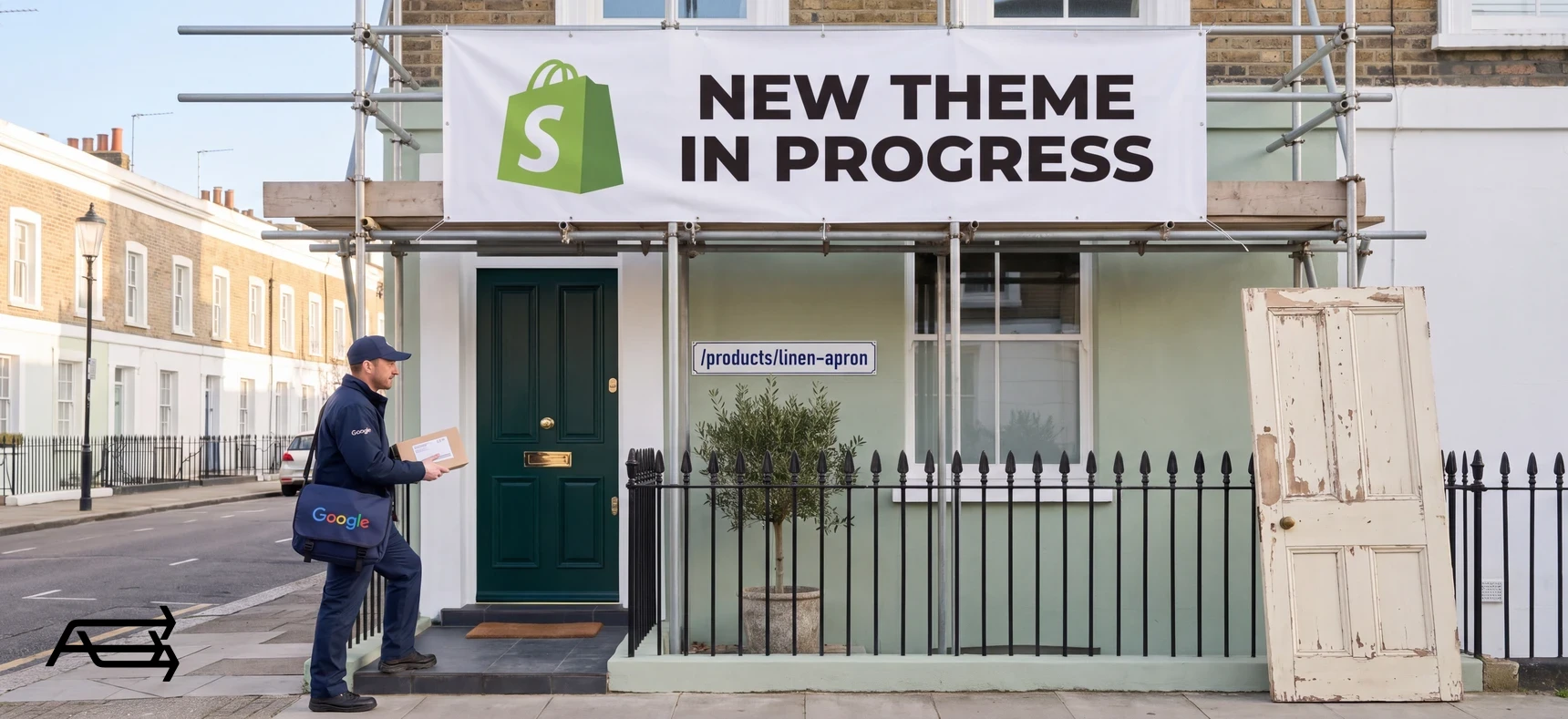
Take a product at /products/linen-apron, with the search title "Linen apron, natural" and a photo whose alt text reads "Natural linen apron, front view". On any theme, all three stay exactly as they are. What changes is the layout around them: where the title sits on the page, which sections appear under the description, and how fast the page loads. Those are the parts to check.
That's why a theme change is a smaller SEO event than moving to Shopify from another platform, where addresses usually change and redirects decide everything. Our guide to moving to Shopify without losing rankings covers that case.
Six things that can shift
1. Text that lives in the theme
What it is. Words you typed into theme sections rather than into a product or page: a homepage introduction, a paragraph above your featured collections, a block of FAQs, a short "about us" on the homepage.
Where it lives. In the theme. Shopify lists text and wording among the things you set up again for each theme you use.
What can go wrong. The new theme launches with its own placeholder text, or no text at all, and Google finds a homepage that says less than it used to. For many small stores, the homepage is the page that ranks for the brand name and the main product type.
A common case: an owner wrote a few paragraphs about the brand on the homepage years ago and has forgotten they're there. Google hasn't. Those paragraphs may be the reason the homepage ranks for the brand at all.
Links work the same way. A "Shop the linen range" button on the homepage, or a row of featured collections, is set up in theme sections, so it stays behind with the old theme. Google says it "uses links as a signal when determining the relevancy of pages and to find new pages to crawl". A new homepage with fewer links into your collections tells Google less about which pages matter. Your menus are kept, because they live in the admin, but the links inside sections have to be put back by hand.
The check. Copy every paragraph from your homepage and any other page built from sections into a document before you switch. Rebuild it in the new theme, then compare.
2. Structured data
What it is. Code Google reads to understand a product page: the name, price, availability, sometimes review stars. It's what can make a product show up in search with its price.
Where it lives. Mostly in the theme. Shopify requires every Theme Store theme to "include Google's rich product snippets", so a theme from the Theme Store comes with the basics. Review apps often add their own. A developer may also have added extra structured data to your old theme by hand.
What can go wrong. Extra code added by hand to the old theme doesn't come across, or the new theme and an app both describe the same product, slightly differently.
The check. Before and after the switch, run one product page through Google's Rich Results Test, which Google calls "an easy and useful tool for validating your structured data". Compare what it finds.
3. Speed and how the store behaves on phones
What it is. How quickly pages load and respond, measured by Google as Core Web Vitals.
Where it lives. Partly in the theme, partly in your apps and images. A new theme starts with a different amount of code, then your apps and photos are added on top.
What can go wrong. A heavier theme, or one loaded with apps during setup, can be slower than the one it replaced. Google says good Core Web Vitals, along with other page experience aspects, "aligns with what our core ranking systems seek to reward".
The check. Note the figures in Shopify's web performance report and Search Console's Core Web Vitals report before you switch, and compare them a few weeks after. Our article on why Shopify stores slow down lists the usual causes.
4. A customised robots.txt
What it is. The file that tells search engines which parts of your store to crawl. Shopify creates one for you, and most stores never touch it.
Where it lives. If someone customised it, in the theme. Shopify's instructions are to "add a robots.txt.liquid file to the templates folder of your theme", and Shopify notes that uploading a theme in the admin won't import that file.
What can go wrong. A customisation in the old theme disappears with it, or a careless one is copied into the new theme. Shopify's warning about this file is blunt: "Incorrect use of the feature can result in loss of all traffic."
The check. Ask whoever has worked on your theme whether robots.txt was ever customised. If it was, find out why before deciding whether the new theme needs the same rule.
5. Verification and tracking code pasted into the theme
What it is. A line of code someone added to the theme to prove to Google Search Console that you own the site, or to load a tracking tool.
Where it lives. In the old theme's code, if it was added that way. Shopify's own Google channel and app embeds don't depend on it, but older setups often do.
What can go wrong. The verification line disappears with the old theme. Google's guidance for site moves tells owners to keep their "verification file, meta tag, or Google Analytics code" in the new copy of the site, and the same logic applies here.
The check. In Search Console, open Settings > Ownership verification and see which method verified your site. If it's an HTML tag, make sure the new theme has it, or switch to a method that doesn't depend on the theme.
6. Pages you drop or merge
What it is. Pages that existed only because the old theme needed them, or that you decide to remove while you're redesigning.
Where it lives. In your admin. The addresses stay the same unless you delete or rename the page.
What can go wrong. A page Google ranks gets deleted in the tidy-up, and its address starts returning an error.
The check. Before deleting any page or product, check whether it gets visits from search. If you remove it, create a redirect to the closest page in Content > Menus > URL redirects. Shopify notes that a redirect only works when the old address no longer loads a page.
The six at a glance
| # | What can shift | Where it lives | The check |
|---|---|---|---|
| 1 | Text in theme sections | The theme | Copy it out before, rebuild it after |
| 2 | Structured data | Theme and apps | Rich Results Test, before and after |
| 3 | Speed and mobile | Theme, apps, images | Compare Core Web Vitals reports |
| 4 | A customised robots.txt | The theme, if customised | Ask if it was ever changed, and why |
| 5 | Verification and tracking code | The theme, if pasted in | Check the verification method in Search Console |
| 6 | Pages you remove | The admin | Redirect anything that gets search visits |
How big is your risk?
Low if your theme has no code changes, your homepage text is short and you'll rebuild it, and you're not removing pages. Do the checks and watch Search Console.
Medium if a developer has worked on the theme over the years. Code for structured data, robots.txt or verification may be hiding in it, and someone should look before you switch. Ask them to list what they find, so the new theme gets only what's still needed.
High if you're changing addresses or deleting pages as part of the redesign. That's closer to a migration than a theme change, and it needs a redirect plan. Our guide to keeping your rankings in a move applies.
What a new theme won't do for SEO
A theme can make a store faster, clearer and easier for Google to read. It doesn't add relevance. Rankings come mostly from what your pages say and who links to them, and a new theme changes neither. If your products rank poorly today because their descriptions are thin, they'll rank the same way on a new theme. Descriptions, collection text and links are the work of our SEO service, and they can go in alongside the new theme.
Expect some movement in the first weeks after any visible change. What matters is the direction a month or two later, measured on the pages that brought you search visits before.
Before and after: the steps
- Copy the text from your homepage and any other page built from sections into a document.
- Note your numbers. In Search Console: clicks and impressions for the last three months, and the pages that bring the most. In Shopify: the web performance report. Export the list of top pages from Search Console so you have it to compare against later.
- Check your verification method in Search Console, and ask whether robots.txt was ever customised.
- Run one product page through the Rich Results Test and save the result.
- Build the new theme as a draft, rebuild the text, and keep every page address as it is.
- Publish, then repeat steps 2 to 4 on the live store and compare.
- Watch Search Console weekly for the following month. Look at the pages that brought visits before. The site total can hide a drop on a single page. If one of those pages falls and stays down for several weeks, compare it on the old and new theme: its text, its main heading and its speed.
What to tell whoever builds your new theme
If someone else is setting up the theme, give them these lines with the brief. None of them adds work to a careful job, and each one prevents a common SEO slip.
- Keep every page, product and collection address exactly as it is.
- Rebuild the homepage text from the document I'm sending, word for word unless we agree a change.
- Each page should have one clear main heading: the product name on product pages, the collection name on collection pages.
- Don't add apps during setup without checking the effect on speed.
- Keep the Search Console verification working, and tell me if the old theme had any custom robots.txt or structured data code.
- Run one product page through the Rich Results Test before and after.
Do it yourself, or hand it to us?
What it takes on your own. Learning Search Console well enough to read the before and after. Copying every line of section text out of the old theme and back into the new one, running the Rich Results Test, and finding out whether anyone ever touched robots.txt or pasted verification code into the theme. Then a month of weekly checks page by page. On a theme developers have worked on, the hidden code is the part that's easy to miss and expensive when you do.
What we do. We record your rankings and speed before the switch, carry the theme text and links across word for word, find any structured data, robots rules and verification code in the old theme, and check the same pages after launch. The new theme goes live on the same addresses while the store keeps selling, and we do it in days. That's our Store Design & Theme Development work.
Questions store owners ask
Will changing my Shopify theme hurt my SEO?
Not by itself. Your addresses, titles and descriptions stay the same. The risks are text that lived in the old theme, a slower new theme, and code that was added to the old theme by hand. Check those and the change is usually neutral or better.
Do my URLs change when I change my Shopify theme?
No. Product, collection and page addresses are set in your admin, so they stay the same on any theme.
Will I lose my meta titles and descriptions?
No. They're stored with each product, collection, page and blog post in your admin, and the homepage's in Online Store > Preferences. A theme change doesn't touch them.
Do I need redirects after changing my theme?
Only for pages you remove or rename. If every address stays the same, there's nothing to redirect. Shopify's redirects only work for addresses that no longer load a page.
Is a theme change the same as a site migration?
No. A migration usually changes addresses, which is where most lost rankings come from. A theme change on the same addresses is a redesign, with smaller and more checkable risks.
How do I check structured data after switching theme?
Run a product page through Google's Rich Results Test before and after the switch, and compare what it finds. If something disappeared, it was probably added to the old theme by hand.
Changing your theme and worried about rankings? Get a free Store Audit
Send us your store URL and we'll send your Store Audit the same day: your Google basics (titles, descriptions, structured data), your speed on a phone and a computer, and your theme and what it can't do. It's free.