

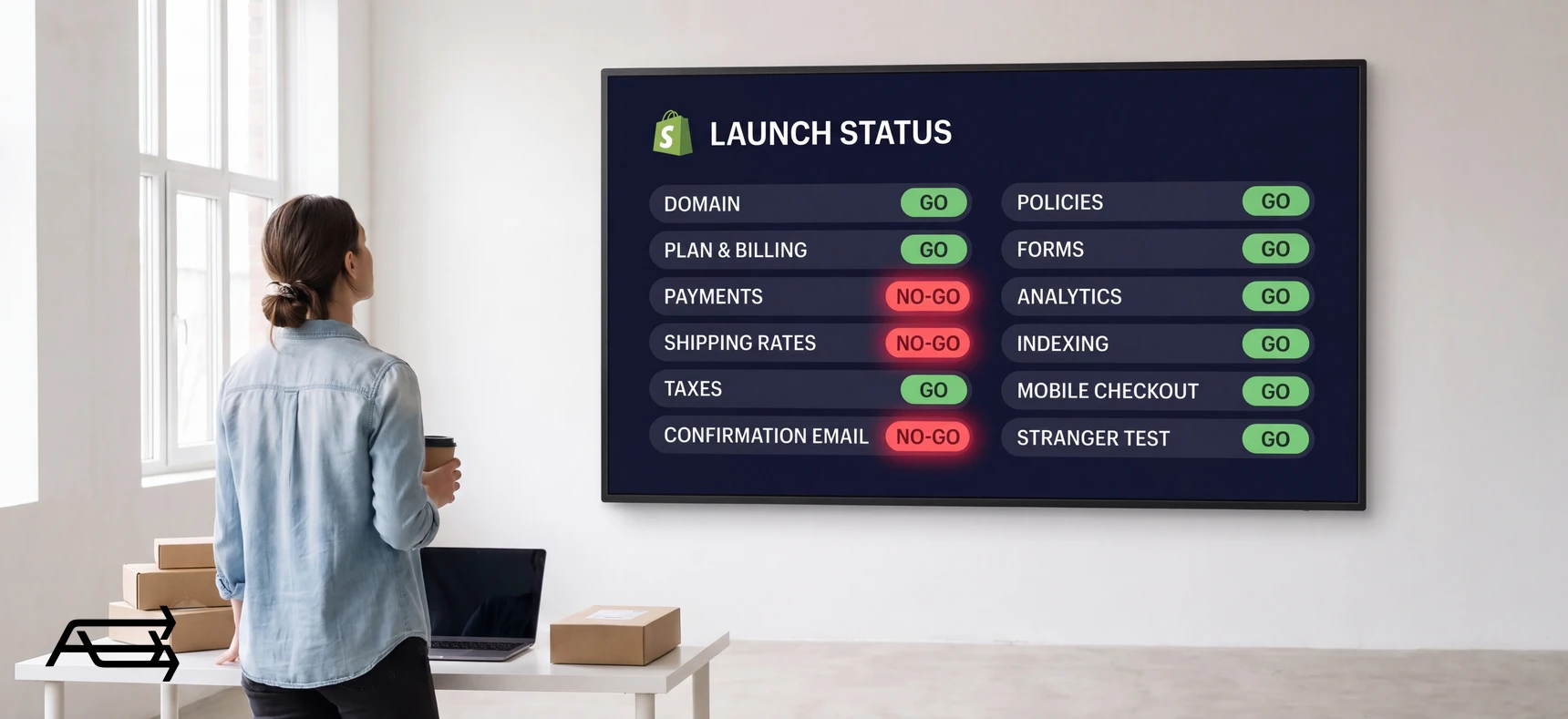
Most launch checklists are lists of things to do. This one is a list of things to prove, because a store that looks finished and a store that takes an order are not the same store.
In short
- Twelve checks, about an hour of work.
- Each ends in a test that passes or fails. A task you can only tick is not a check.
- One real order (placed, paid, confirmed by email, refunded) covers six of the twelve.
- The three that break most often: payments, shipping rates, the confirmation email.
How to run this check
Set aside an hour. You need a phone with mobile data, a laptop, a card you can charge and refund, and a second email address on a different provider from your own.
Work as a customer. Use a private window and your own domain, never the theme preview. The admin shows what you set up; the storefront shows what a stranger gets.
Go in order. Checks 1 and 2 have to pass before the rest can be tested.
Write a pass or a fail for each, not "looks fine".
The 12 checks
1. The domain resolves, with and without www
What to check. The store answers on yourdomain.com and on www.yourdomain.com, and both end up on the same address.
How to prove it passed. Open both in a private window. Both load, the address bar settles on the same one, and the domain reads as connected in Settings > Domains.
What failing looks like. One shows your registrar's parking page, a certificate warning or nothing. Or both load and stay separate: two versions of every page.
The fix. Point the A record to 23.227.38.65 and the CNAME named www to shops.myshopify.com., then set your primary domain. Shopify says this might take up to 48 hours, so do it days ahead; other domains redirect to the primary.
2. The account is on a plan, with billing that will not bounce
What to check. A paid plan is selected and a working payment method sits on the account.
How to prove it passed. The Launch button completes. Shopify won't let you launch until you have selected a plan, added a store address and set up a payment method with test mode off.
What failing looks like. On a trial the store sits behind a password page, and with no plan chosen it is paused until you pick one. Later, a missed bill freezes it, and then "customers can't view your store".
The fix. Choose the plan before launch week, and use a card that won't expire in the next few months.
3. A real payment goes through, and a refund comes back
What to check. Money can leave a customer's card and find its way back.
How to prove it passed. Shopify gives three ways to test an order: Payments test mode, the Test payment gateway, or a real order paid with a real card and then refunded. Only the third proves the live setup. Pass is paid in the admin and both lines on the card statement.
What failing looks like. The card is declined, or the order goes through with no money moved because test mode is still on. Shopify: "deactivate test mode so that real payments are captured".
The fix. Turn test mode off and run it again. Expect a wait on the refund: pending for up to 2 business days, up to 10 to reach the customer, and the transaction fee is not returned to you.
4. Shipping rates appear for every country you sell to
What to check. Every country you sell to returns a rate with a price at checkout.
How to prove it passed. Start a fresh checkout and enter a real address in each country. A rate and a price appear every time. Use a new checkout for each: "an abandoned checkout keeps the rates from when it was created".
What failing looks like. The country is missing from the dropdown, or the customer is told no shipping rate is available for their region.
The fix. A shipping zone is a group of countries or regions, and a country has to sit in an active market before a zone can cover it. Add the market, activate it, set the rates, then check your products are in a profile covering that zone.
5. Tax settings match where you sell
What to check. Tax is charged where you are registered, and nowhere else.
How to prove it passed. Run two checkouts, one inside a region you're registered in and one outside it, and compare each tax line against what you expect. Shopify's steps are three: determine the obligation, register, then start to collect.
What failing looks like. Tax appears for places you never registered in, or no tax appears anywhere.
The fix. Work the three steps in order, and remember the filing stays yours. This check proves the store does what you told it; whether what you told it is correct is a question for an accountant.
6. Order confirmation and shipping emails arrive, and don't go to spam
What to check. The automatic emails (order confirmation, shipping confirmation and order refund) reach an inbox.
How to prove it passed. In Settings > Notifications, click Send test email; it goes to the account you logged in with. Then read your test order's confirmation at a second address on another provider. Pass is the inbox, not spam, with your domain in the From line.
What failing looks like. The mail sits in spam, or the From line reads something like store+123@shopifyemail.com. Shopify explains why: "Gmail and Yahoo require you to authenticate your domain and have a DMARC record".
The fix. Add the CNAME records Shopify gives you and one DMARC record. Shopify is specific that a domain must have only one, because more than one makes validation fail. Then send the test again.
7. Policies exist and are reachable from the footer
What to check. Return, privacy, terms of service and shipping policies are written, and reachable before checkout.
How to prove it passed. Open /policies/refund-policy, /policies/privacy-policy, /policies/terms-of-service and /policies/shipping-policy. Each loads in your own words. Then, on a phone, reach all four from the homepage using footer links only.
What failing looks like. One address returns a 404. Or the page opens on the untouched template, still carrying bracketed placeholders where your return window and address belong.
The fix. In Settings > Policies, use Insert template to start each one, then edit every line. Shopify links them in the checkout footer automatically, but the storefront footer is yours to build in Content > Menus.
8. Every form sends somewhere a person reads
What to check. The contact form, and anything else that asks for an email address.
How to prove it passed. Submit the contact form from your second address with a message you'll recognise, then find it in the inbox. Shopify sends every submission to your store's sender email address.
What failing looks like. Nothing arrives, or it arrives somewhere nobody opens. Or it lands in spam: flagged messages come through with a [SPAM] prefix, so you get them, but only if you look.
The fix. Set the sender email in Settings > Notifications to an address a person reads every day, and confirm it. Filter on the From address, not the subject: Shopify's contact form subject line can't be changed.
9. Analytics and Search Console are connected and recording
What to check. A real visit shows up in your analytics, and Google can report on the site.
How to prove it passed. With private mode off, open the store on your phone over mobile data and watch the realtime view: one session, inside a minute. Shopify notes that Analytics can't track events until private mode is deactivated, so run check 10 first. For Search Console, verify the domain, then submit yourdomain.com/sitemap.xml.
What failing looks like. Zero sessions after a real visit, usually because the tag went in while the store was still private. Or an unfetchable sitemap, usually an unverified domain.
The fix. Create the GA4 property and data stream, install the Google & YouTube channel, add the tag. For Search Console, verify ownership. A DNS record covers the whole domain. The sitemap is generated automatically.
10. The store is indexable: password off, nothing blocking
What to check. Google is allowed to crawl the store.
How to prove it passed. Open the store in a private window: no password screen. Then run the homepage through URL Inspection in Search Console. On launch day expect "URL is not on Google", which is normal for a page Google has never seen, and read the crawl detail underneath. Click Request Indexing, then search site:yourdomain.com days later.
What failing looks like. Private mode is still on, which hides every page from visitors and search engines. Or a noindex tag left from staging sits in theme.liquid, which is where Shopify tells you to put one. Or a disallow rule sits in robots.txt.liquid.
The fix. Deactivate private mode in Online Store > Preferences, and search theme.liquid for content="noindex". Then wait: Google says it can take a few weeks to notice a new site.
11. The whole flow works on a phone, on mobile data
What to check. The same journey again, on a real phone, with wifi switched off.
How to prove it passed. Send yourself the link, turn wifi off, and go homepage → collection → product → cart → checkout → payment step. Pass means you got there without pinching to zoom, without a field hiding behind the keyboard, and without staring at a blank area for more than a second or two.
What failing looks like. The add-to-cart button below a long description. A pop-up with a close button too small for a thumb.
The fix. Treat the phone as the real version of the store. Google uses the mobile version of a site's content for indexing and ranking and asks that mobile carry the same content as desktop, so what's hidden on a small screen is hidden from search.
12. Someone who isn't you completes a purchase without asking a question
What to check. A person who has never seen the store can buy from it while you say nothing.
How to prove it passed. Give them the URL and a product to buy, then watch without helping. Write down every question and every pause longer than three seconds. Pass is an order placed with no questions asked. Refund it afterwards.
What failing looks like. "What size is this?" "Is that dollars or euros?" "How long does delivery take?" "Can I send it back?" Each question marks a line missing from the page they were on.
The fix. Answer each one where it was asked (on the product page, in the cart, next to the price), not on an FAQ page nobody opens.
The twelve at a glance
| # | Check | The test | Pass looks like |
|---|---|---|---|
| 1 | Domain, with and without www | Open both in a private window | Both load, both settle on one address |
| 2 | Plan and billing | Launch the store | The Launch button completes |
| 3 | Payment and refund | Real order, real card, then refund | Paid in admin, credit on the statement |
| 4 | Shipping rates per country | A fresh checkout per country | A rate and a price every time |
| 5 | Tax settings | Checkout inside and outside your region | The tax line matches what you expect |
| 6 | Confirmation emails | Test email, then the real one | Inbox, not spam, your domain in From |
| 7 | Policies in the footer | Open the four policy addresses | All four load, no placeholders left |
| 8 | Forms reach a person | Submit the contact form yourself | The message arrives where it's read |
| 9 | Analytics and Search Console | Visit on mobile data, watch realtime | One session, and the sitemap accepted |
| 10 | Indexable | Private window, then URL Inspection | No password page, crawling allowed |
| 11 | The phone flow | The journey on mobile data | Payment step reached, no zooming |
| 12 | A stranger buys | Watch someone buy, in silence | Order placed, no questions asked |
The one test that covers half the list: a real order, step by step
Checks 3, 4, 5, 6, 8 and 11 come out of a single order if you run it properly. Shopify recommends placing at least one test order during setup. Do it on a phone, on mobile data, with a real card.
- Confirm test mode is off in Settings > Payments. A test-mode order proves the flow and nothing about the money.
- Open the store from a link, not a bookmark: your own domain, private window.
- Reach a product page in three taps or fewer. If you can't, note it and carry on.
- Add to cart and open the cart. Check the price, the currency and the shipping policy link.
- Enter a shipping address in your main market. A rate with a price appears. Note the tax line.
- Change the country to a second market, watch the rate and tax change, then change it back.
- Pay with a real card. The confirmation page loads with an order number.
- Read the confirmation email at your second address. Check the From line and the folder it landed in.
- Open the order in the admin. Paid, with the right totals, tax and shipping. Fulfil it to trigger the shipping confirmation, and read that email too.
- Refund it in full and watch the refund email arrive.
- Submit the contact form while you're still on the phone, then find that message in the inbox.
Anything that surprised you on that run is a failed check. Write it down before you fix it, or you'll fix the loud one and forget the quiet one.
Are you ready? The decision rule
- All twelve pass. Launch. Run checks 3, 6 and 9 again the day after, because those three drift.
- One to three fail. Fix them, then re-run the whole test order today. A change to check 4 often moves check 5, so re-test the block, not the line.
- Four or more fail. The store isn't finished. Launch quietly if you want the domain live, but don't send paid traffic to it. Every visitor who arrives before these pass is one you paid for and lost.
There is no partial credit. "It mostly worked" is a fail, because the visitor who hits the one broken path doesn't tell you. They leave.
When the checklist won't help
A store that passes all twelve still might not sell. These checks prove the machine works. They don't prove anyone wants what's in it, that the price is right, or that a single person knows the store exists.
They also can't see what only appears under load: an app that slows down when several people browse at once, a stock count that goes wrong on the second order of the same item, a courier that quotes one price and charges another. Those show up in the first weeks, not in the first hour.
Twelve passes are permission to start, not evidence of a good store. That comes later, from orders, and getting found and getting the product page right are the work we do, in our SEO and conversion work.
What to do in the first week after launch
- Watch the first three real orders end to end. Confirmation sent, payment captured, address readable, tax right. Three clean orders is where the setup is proven.
- Read your own confirmation email once a day. Deliverability changes when volume changes, and the first week is when it changes most.
- Check Search Console every other day for coverage and anything reported as blocked. A
noindexyou missed shows up here before it shows up in traffic. - Check that analytics recorded the orders, not only the sessions. A store can track visits perfectly and miss every purchase.
- Re-run check 4 for your second and third markets. Rates are the most common thing to be right on the day and wrong a week later, after a profile is edited.
- Ask your first three customers one question: was anything unclear? Two answers beat another hour of your own testing.
Do it yourself, or hand it to us?
What it takes on your own. The hour is the passing run. Each fail means finding the cause in a different part of Shopify: DNS records, market and shipping profiles, tax registrations, email authentication, theme code for a stray noindex. Then re-running the test order after every fix, on a phone and on mobile data. On a first store, that's the week before launch, when you'd rather be getting ready to sell.
What we do. We run the twelve on your store, fix what fails, and place and refund the real order with you, so launch day starts with a store that's proven to take money. The cost of a failed check isn't the fix. It's the traffic that arrived while it was broken. That's our Audits & Diagnostics work.
Questions store owners ask
Can I launch a store while I'm still on the free trial?
Not as a public store. Shopify puts a trial store in private mode, with a password landing page instead of your pages, and asks for a plan, a store address and a payment method before you can launch.
Do I really need every policy page?
You need the ones that describe how you actually trade: return, privacy, terms of service and shipping cover most small stores.
Can I test my checkout without charging my own card?
Yes. Shopify Payments has a test mode, and there's a separate Test payment gateway for simulated orders. Neither proves money moves or that the refund arrives. Run one real order with a real card before launch, then refund it.
How long should launch preparation take?
The twelve checks take about an hour. The one thing you can't compress is the domain: DNS changes can take up to 48 hours to be fully live, so connect it several days ahead.
What if payments stop working after launch?
Check test mode first: it's the most common cause, and a two-click fix. Then check the subscription: a missed bill freezes a store, and a frozen store is invisible to customers and to you. Both show up immediately if you place one real order a week.
Should I launch quietly first?
Turn off private mode, let the store sit for a few days with no promotion, watch the first orders and the Search Console reports, then start spending. A quiet launch costs a few days. A loud launch over a failed check costs the campaign.
Want someone to run the twelve before you open the door? Start with a free Store Audit
Send us your store URL and we'll send your Store Audit the same day: speed, Google basics, the product page and the cart on a phone, a tablet and a computer. It's free, and it tells you where to start.