

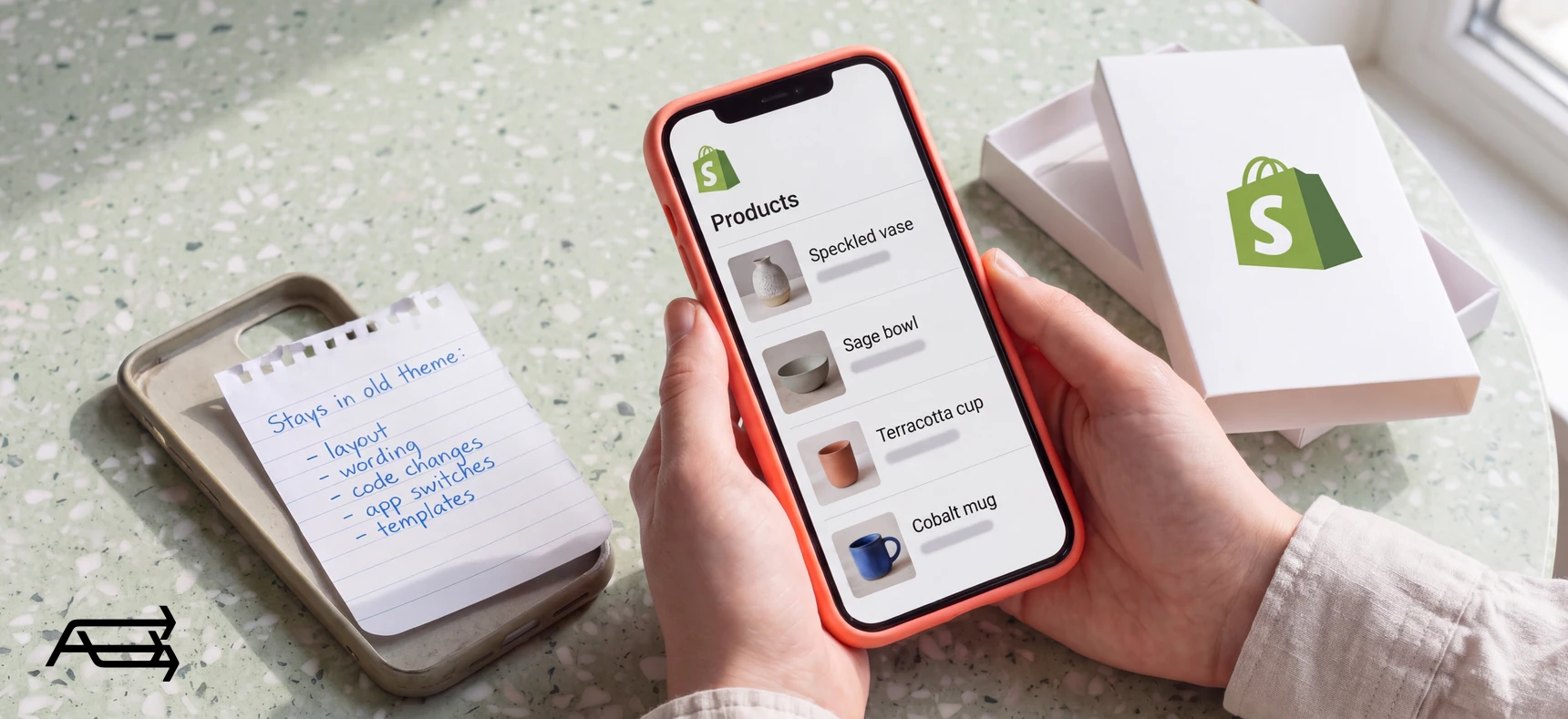
When you change your Shopify theme, your products, collections and pages stay exactly where they are. What doesn't come with you is everything that lived inside the old theme: its layout, its wording, the code someone added years ago, and the switches that connect your apps. That second list is what owners are afraid of losing.
This article sorts what moves from what stays behind, then shows how a careful switch keeps the store selling while it happens.
In short
- Your products, collections, menus, pages and blog posts aren't changed or deleted when you switch theme. Your web addresses stay the same.
- Six things stay with the old theme: layout and settings, the wording inside the theme, code changes, app connections, features the old theme had built in, and custom templates.
- The store keeps selling while you work. A new theme is built as a draft, previewed, and published when it's ready. The old one stays in your library.
- The size of the job depends on how much lives in your current theme. List it before you start.
How to use this article
Give it 30 to 45 minutes, with your Shopify admin open and a notepad next to it.
Go through the six sections with your own store in mind. Each one ends with a check you can run on your current theme before anything changes. Write down what you find. By the end you'll have an inventory of what your theme holds today.
Then read the decision rule. It tells you whether your switch is a small job or a project that needs a plan, and the step-by-step section shows what that plan should include, whoever does the work.
What moves with you
Shopify keeps your store's content in the admin, separate from the theme. Its help page says your store's "products, collections, menus, pages, blog posts aren't changed or deleted when you switch to a new theme". Orders and customers live in the admin too, so a theme change doesn't touch them.
Your web addresses don't change either. A product's address is set on the product itself, so the links you've shared and the pages in Google's index keep working on the new theme.
And the old theme doesn't disappear. When you publish a new one, Shopify says "your old theme is still available in draft themes", so switching back takes a click.
One owner on Shopify Community put the usual fear in a single line before switching away from Debut: "I don't want to have to edit the debut theme again and add products again etc." The products part of that worry can go. The editing part is the one to plan for, and the rest of this article covers it.
Six things that live inside your theme
Shopify lists the parts of a store you have to "customize for each theme you want to use": sections and blocks, colours and fonts, text and wording, code customisations and templates. Below are those, plus two that catch owners out. Each has the same four parts: what it is, why it gets lost, the check to run before you switch, and how a careful switch protects it.
1. Layout, sections and settings
What it is. How your homepage is arranged, which sections sit on your product and collection pages, your colours, fonts, logo size, header and footer.
Why it gets lost. Every theme stores these its own way. A new theme starts from its own demo layout, not from yours.
The check. Take screenshots of your homepage, a collection page, a product page and the cart, on your phone and on a computer. Those are your reference for what the store does today.
How a careful switch protects it. The new theme is set up section by section against those screenshots. What works is kept, and anything that changes, changes because someone decided it should.
2. The wording inside the theme
What it is. Text that isn't on a product or a page: the announcement bar, button labels, the line under the price, the empty-cart message, footer text, and any translations.
Why it gets lost. It's stored in the theme. Shopify lists "text and wording" among the parts you set up again for each theme, and it's easy to miss because nobody remembers writing it.
The check. Read your store out loud from homepage to cart and note every line that isn't a product description. Shipping promises and return wording matter most.
How a careful switch protects it. Every line is copied across and checked, so a promise like "free returns within 30 days" doesn't quietly turn back into the theme's default text.
3. Code changes
What it is. Anything someone added to the theme's code: a size chart, a delivery-date message, a custom badge, a tracking snippet, a fix for something that bothered you in 2021.
Why it gets lost. Code is written for one theme's structure. When an owner on Shopify Community asked about moving Debut's search into another theme, Shopify's support team advised against copying it across, because the two themes are built differently. The work usually has to be redone, and the harder part is knowing it exists. Code changes are rarely written down, and the person who made them has often moved on.
The check. Ask whoever has worked on your store what they changed. If nobody knows, a developer can compare your theme's files with a clean copy of the same theme and list the differences.
How a careful switch protects it. Each change gets a decision: rebuild it, replace it with a setting or an app the new theme supports, or drop it because the new theme already does it.
4. App connections
What it is. The app blocks and app embeds that put your apps on the page, such as review stars or a chat bubble.
Why it gets lost. They're switched on per theme. Shopify says that if you change your published theme, you'll need to reactivate your apps in the new theme. Older apps that wrote their code straight into your theme files don't move at all, which is sometimes a relief and sometimes a missing feature.
The check. List every app that shows something to customers, and where on the page it appears.
How a careful switch protects it. Every app is switched on and placed in the new theme before it goes live, and each one is tested. It's also the right moment to drop apps you no longer use, and to check each app is ready for Shopify's script tag change on 1 March 2027. Our guide to the apps a small store needs helps sort them.
5. Features the old theme had built in
What it is. Things your theme does without an app: a mega menu, colour swatches, quick view, a sticky add-to-cart button, a stock counter.
Why it gets lost. Themes don't all have the same features, and Shopify warns that "not all themes support all Shopify features". A missing feature tends to show up after the switch, when a customer asks where it went.
The check. Click through your store and list everything it does, not just what it shows.
How a careful switch protects it. The new theme is chosen against that list, so nothing the store does today goes missing. Our comparison of free and premium themes shows which features each kind usually has.
6. Custom templates and the products that use them
What it is. Special layouts for some products or pages: a different product page for bundles, or one that shows extra product details from custom fields.
Why it gets lost. Templates belong to the theme. Shopify's help says the template options in each product's settings are "based on the available templates only in your current live theme", so a product set to a template the new theme doesn't have falls back to the default look.
The check. Look at the Theme template box on a few of your products. If you see anything other than "Default product", that template needs rebuilding.
How a careful switch protects it. Each template is rebuilt in the new theme, and the products assigned to it are checked one by one.
The six at a glance
| # | What lives in your theme | The check before you switch | How a careful switch protects it |
|---|---|---|---|
| 1 | Layout, sections, settings | Screenshots of four pages, phone and computer | Rebuilt section by section against them |
| 2 | Wording inside the theme | Read the store out loud, note every line | Copied across and checked line by line |
| 3 | Code changes | Ask who changed what; compare with a clean copy | A decision per change: rebuild, replace or drop |
| 4 | App connections | List apps and where they appear | Switched on and tested before going live |
| 5 | Built-in features | List what the store does | Theme chosen against that list |
| 6 | Custom templates | Check each product's template | Rebuilt, products checked one by one |
How a store keeps selling during the switch
There's no need to take the store offline. Shopify lets you add a theme to your draft themes and "customize it before you publish it", while customers keep buying on the current one. The new theme can be previewed on a phone and shared with anyone who needs to see it. When it's ready, publishing takes seconds, and the old theme moves to your library, where it stays until you delete it.
The risky moment is publishing. An owner on Shopify Community wrote after one switch, "The cart isn't working since we switched", and put the cost at over $5,000 a day. A theme can look finished in the editor and still fail at the cart. That's why the steps below end with a test order before publishing, and a few days of watching afterwards.
Before any of that, make a copy. Shopify suggests duplicating a theme as a backup before you change it, and it costs nothing.
Small switch or project?
Count the yeses from your inventory:
- Has anyone ever changed your theme's code?
- Do you have custom templates, or product details shown from custom fields?
- Do you have more than three apps that show something on the store?
- Is your current theme a vintage one, from before Shopify's Online Store 2.0? (Our article on being stuck on an old theme explains how to tell.)
No yeses. A small switch: the work is in the settings, the wording and the photos. Small doesn't mean quick. Making a new theme look like your store, not like the demo, is most of the job.
One or two. A careful switch. Plan it, test it, and budget for the code and template work to be redone.
Three or four. A project. Treat it like one, with a written list of what the store does today and a test plan agreed before anything goes live. Most of the risk sits in work nobody wrote down.
What a new theme won't fix
A theme changes how your store looks and works. It doesn't change what you sell or who sees it.
If the store has visitors and few orders, look at the shipping cost and the product page itself; our article on traffic without sales covers where to look. If it has few visitors, a new theme won't bring more. Both are jobs we take on too, in our SEO and conversion work.
And a premium theme left on its demo settings looks like a demo: the setup is the work, whichever theme you pick.
What a careful switch looks like, step by step
These are the steps we follow on every switch. If a quote you're given leaves one out, ask why.
- Write down what the store does today. The inventory from the six checks above: screenshots, wording, code changes, apps, features, templates.
- Duplicate the current theme. A backup that costs nothing.
- Add the new theme as a draft. The live store doesn't change.
- Rebuild against the inventory. Sections, wording, templates and any code changes that are still needed. Anything the new theme already does better is left out, and that's written down too.
- Switch on every app in the new theme, and place app blocks where they belong.
- Test like a customer. On a phone and a computer: search, a collection, a product with variants, the cart, a discount code, and a test order through checkout. Then check the order came through in the admin.
- Publish at a quiet hour and watch. Keep the old theme in the library. For the first week, compare orders and add-to-cart rate with the week before.
Do it yourself, or hand it to us?
What a switch takes on your own. The inventory above. Then a new theme's editor to learn, every section, line of wording and template rebuilt against your screenshots, code changes found and redone, every app switched on and placed, and a full test with a real order. Then a week of watching the numbers. Even a small switch takes several evenings, and a project takes far longer, all of it time away from your products and your customers.
What we do. We take the inventory, choose the theme against it, and build the new theme as a draft while you keep selling. We find the code nobody wrote down, set up every app, and test with a real order before anything goes live. The work takes us days. That's our Store Design & Theme Development work.
Questions store owners ask
Will I lose my products if I change my Shopify theme?
No. Products, collections, menus, pages and blog posts are kept in your admin and aren't changed or deleted when you switch. Orders and customers stay too. What you set up again is everything stored in the theme.
Will my store go offline while I change themes?
No. The new theme is built as a draft while customers keep buying on the current one. Publishing takes seconds. The risk is a mistake in the new theme, which is why a test order comes before publishing.
Do my apps move to the new theme?
The apps stay installed, but their switches don't move. Apps that use app blocks or app embeds need turning on again in the new theme. Apps that wrote code into the old theme's files don't carry across at all.
Can I copy my code changes into the new theme?
Usually not as they are. Code is written for one theme's structure, so it generally has to be rewritten for the new one. Some changes can be replaced by a setting or an app block in a newer theme.
Can I go back to my old theme?
Yes. When you publish a new theme, the old one stays in your theme library as a draft, and you can publish it again. Anything you changed in the new theme stays in the new theme.
Will changing my theme change my web addresses?
No. Product, collection and page addresses are set in your admin, so links in emails, ads and search results keep working.
Planning a theme change? Start with a free Store Audit
Send us your store URL and we'll send your Store Audit the same day: your theme and its version, what it can't do, the app scripts that stop on 1 March, and the old code still in your theme. It's free.